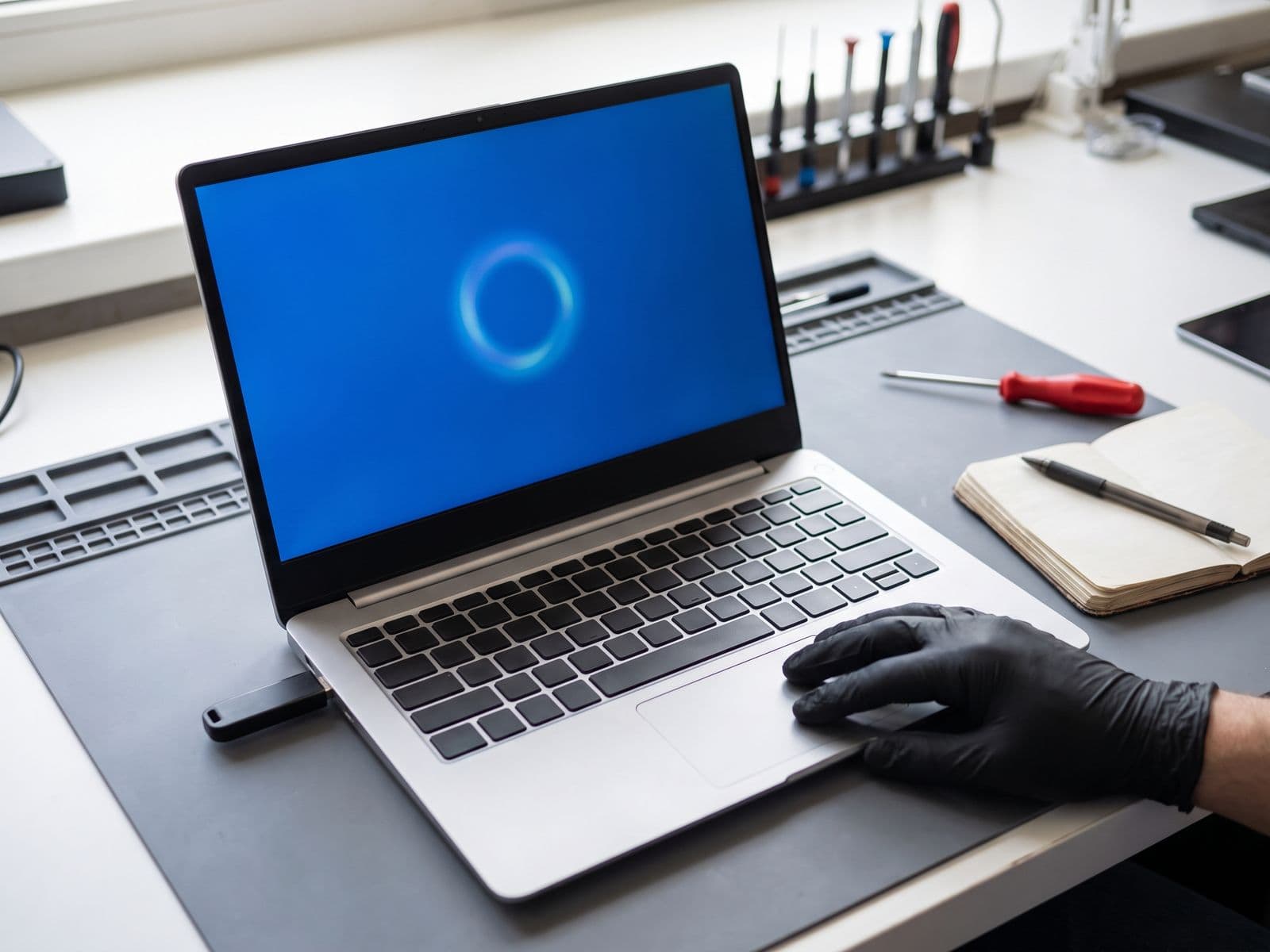

A blue screen means Windows hit an error it could not recover from. Note the stop code, undo recent changes, then check drivers, memory and the drive.
A Windows blue screen (BSOD) means Windows hit a fault it could not safely continue from, so it stopped and restarted. One blue screen after an update or a driver install is often a software problem you can undo. Repeated blue screens with different stop codes usually point to failing RAM, a failing SSD or heat.
Note that some recent builds of Windows 11 show the same crash information on a black screen instead of a blue one. Everything in this guide applies either way.
What does the blue screen tell you?
The screen shows a stop code in capital letters (for example MEMORY_MANAGEMENT or CRITICAL_PROCESS_DIED), and often a QR code that opens a Microsoft help page for that code. Photograph the screen with your phone before it restarts, because the stop code is the best clue you will get.
| Stop code | Usually points to |
|---|---|
MEMORY_MANAGEMENT | Faulty RAM, or sometimes a driver |
INACCESSIBLE_BOOT_DEVICE | SSD or hard drive problem, a storage setting change, or a bad update |
KERNEL_DATA_INPAGE_ERROR | Failing drive, bad cable or connection |
CRITICAL_PROCESS_DIED | Corrupted system files, a driver or a drive fault |
DRIVER_IRQL_NOT_LESS_OR_EQUAL / SYSTEM_SERVICE_EXCEPTION | A driver or software that just changed |
WHEA_UNCORRECTABLE_ERROR / CLOCK_WATCHDOG_TIMEOUT | Hardware: processor, memory, overheating or the motherboard |
A stop code is a pointer, not a verdict. The same code can have a software cause on one laptop and a hardware cause on another.
Common causes of a blue screen
- A new or corrupted driver (graphics, Wi-Fi, storage, touchpad).
- A recent Windows update or software install.
- Failing RAM or a loose memory module.
- A failing SSD or hard drive, which cannot read parts of Windows.
- Overheating, from dust, dried thermal paste or a blocked fan.
- Corrupted system files after a power cut or interrupted update.
- A motherboard fault, which is the least common but the hardest to ignore.
Step 1: Undo what changed recently
If the blue screens started after something specific, reverse it first.
- Remove USB drives, docks, printers and other add-ons, then restart.
- If you can reach the desktop, open Settings > Windows Update > Update history > Uninstall updates and remove the latest update.
- Uninstall any program or driver you installed just before the crashes began.
- If a driver is the suspect, open Device Manager, right-click the device, choose Properties > Driver > Roll Back Driver (if the button is available).
Step 2: Start in Safe Mode if Windows will not load
Safe Mode loads Windows with only basic drivers, which is a good way to tell a driver problem from a hardware one.
- Restart the laptop. When the sign-in screen or Windows logo appears, hold the power button to force it off. Do this twice or three times until Windows shows Automatic Repair.
- Choose Advanced options > Troubleshoot > Advanced options > Startup Settings > Restart.
- Press 4 (or F4) for Safe Mode, or 5 for Safe Mode with networking.
If the laptop is stable in Safe Mode but crashes in normal mode, a driver or startup program is the likely cause. If it still blue-screens in Safe Mode, suspect hardware.
Step 3: Repair system files
From Safe Mode or the desktop, open Command Prompt as administrator and run these two commands one after the other, waiting for each to finish:
sfc /scannow
DISM /Online /Cleanup-Image /RestoreHealth
sfc checks Windows system files and repairs what it can. DISM repairs the Windows component store that sfc relies on. Run sfc /scannow once more after DISM finishes, then restart.
Step 4: Test memory and the drive
Memory and storage faults cause many repeat blue screens.
- Press Windows + R, type
mdsched.exeand press Enter. Choose Restart now and check for problems. Windows tests RAM on restart and shows the result after you sign in. Errors here mean the RAM, or sometimes the slot, is at fault. - Open Command Prompt as administrator and run
chkdsk C: /scanto check the drive for file-system errors. The drive manufacturer's own health tool gives a more complete picture of an SSD. - Slow file opening, freezes, files that will not copy, or the drive vanishing now and then are signs of a failing drive. Back up now. A failing drive can get worse each time you use it.
Step 5: Read the crash history
Windows records every crash.
- Type Reliability into the Start menu and open View reliability history to see a timeline of crashes and what changed just before them.
- Open Event Viewer > Windows Logs > System and look for Critical entries around the crash time.
If the same driver or file name keeps appearing, that is where to look. If the entries are scattered, hardware becomes more likely.
Software fix or hardware fault?
| Looks like | Likely path |
|---|---|
Started right after an update or install, fine in Safe Mode, sfc/DISM find and repair problems | Software: rollback or reinstall Windows |
| Different stop codes each time, RAM test shows errors | Hardware: RAM |
INACCESSIBLE_BOOT_DEVICE, slow, freezes, drive missing in BIOS | Hardware: SSD |
| Crashes when hot, loud fans, shuts off | Heat: thermal service |
| Crashes at random even in Safe Mode, after drops or liquid | Possible motherboard fault |
If Windows itself is damaged and the hardware tests pass, a clean reinstall is the dependable fix. Our Windows reinstall for laptops is a flat RM100 for a straightforward reinstall. A reinstall erases the drive, so back up first. TechFix does not offer data recovery.
If the screen goes black after you sign in instead, see black screen with cursor after login. If the laptop will not boot at all, see no bootable device error.
When to bring it in
Bring the laptop in if blue screens keep returning after Safe Mode, sfc/DISM and a driver rollback, if the RAM test shows errors, if the drive is slow or goes missing, or if it crashes when hot. We test the hardware first and quote before any repair. Diagnosis for Windows laptops and desktops is RM100, and it is waived when you approve the repair; read the fee policy for the detail. There is no free pickup: you courier the laptop to TechFix or walk in, and we courier it back free.
See Windows laptop repair and laptop repair, then book a diagnosis or WhatsApp us at 012-770 7120. Opening hours are Monday to Friday, 9am to 6pm.