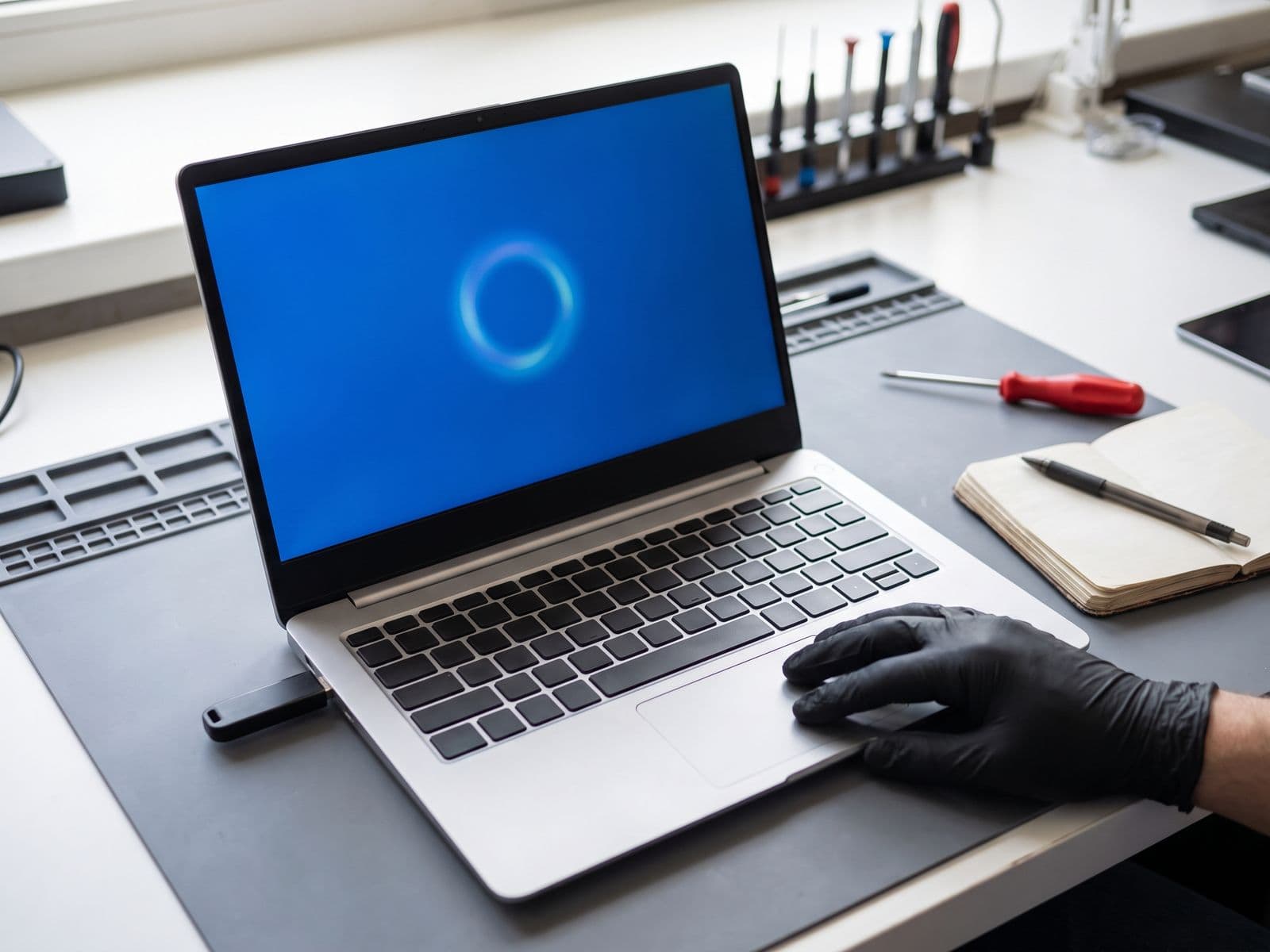

No bootable device means the laptop cannot find a drive with Windows on it. Check USB drives, BIOS boot order and drive detection, then try Startup Repair.
"No bootable device" means the laptop's firmware could not find a drive that holds a working copy of Windows to start from. The cause is often simple, such as a USB stick left in or a changed boot setting, but it can also mean the SSD has failed or come loose.
The wording differs by brand (No bootable device found, Boot device not found, Operating system not found), but the checks below apply to all of them. Work from the easiest check to the hardest.
What does the error actually mean?
When you power on, the BIOS/UEFI looks through the drives in its boot order for a boot loader. If the drive is not detected, is not first in the order, or its boot files are damaged, you get this message instead of Windows.
Typical causes:
- A USB drive, SD card or external disk that the laptop tries to boot from first.
- A changed boot order or UEFI/Legacy setting, sometimes after a BIOS update or a battery-drained reset.
- Damaged Windows boot files after a power cut or interrupted update.
- An SSD or hard drive that has failed, or is loose in its slot after a knock or drop.
Step 1: Remove everything and hard reset
- Unplug USB drives, SD cards, external drives, docks and printers.
- Turn the laptop off, disconnect the charger, and hold the power button for 30 seconds. If the battery is removable, take it out first.
- Reconnect only the charger and power on.
If Windows starts, a connected device was confusing the boot order. If not, continue.
Step 2: Check that the drive is detected in BIOS
- Power on and press the BIOS key straight away. Common keys are F2, Del, F10, Esc or F12 (it depends on the brand; the logo screen often shows it).
- Look for a page that lists installed storage (often Main, Storage or System Information).
- Check that your SSD or hard drive appears with a model name.
If the drive is not listed, the laptop cannot see it at all. This points to a failed or loose drive, or a motherboard connection problem. Software settings will not fix it. Do not keep powering the laptop on and off.
Step 3: Check boot order and UEFI/Legacy settings
If the drive is listed:
- Open the Boot page and make sure Windows Boot Manager (or your drive's name) is first.
- Check the boot mode. Modern Windows 10 and 11 installations normally use UEFI, with Secure Boot on. Switching to Legacy or CSM on a UEFI installation makes the drive unbootable, and the reverse is also true.
- Note every setting before you change it, so you can put it back.
- Try Load Setup Defaults (often F9), then save and exit (often F10).
Do not change storage modes such as AHCI and RAID/Intel RST at random. Windows installed under one mode can fail to boot after a switch.
Step 4: Try Startup Repair
If the BIOS sees the drive but Windows still will not load, the boot files may be damaged.
- Force the laptop off twice during the Windows logo. On the next start Windows should show Automatic Repair and then Advanced options.
- Choose Troubleshoot > Advanced options > Startup Repair.
- If no recovery menu appears, make a Windows installation USB on another PC, boot from it, choose Repair your computer, and then follow the same path.
If Startup Repair fails, Command Prompt in the same menu lets technicians run bootrec /scanos and bootrec /rebuildbcd. On UEFI laptops these can be fiddly, and a wrong command can make things worse, so stop here if you are unsure.
Is it a failing or loose SSD?
Signs the drive itself is the problem:
- The drive does not appear in BIOS, or appears and disappears.
- The laptop was slow, froze or blue-screened before the error appeared.
- The laptop was dropped or knocked recently.
- Startup Repair keeps failing or reports it cannot repair the PC.
Replacing or re-seating an SSD means opening the laptop, which is a job for a technician. See laptop SSD replacement. If the drive is detected but the motherboard cannot talk to it reliably, the fault may be on the board: motherboard repair.
If the drive is healthy but Windows is badly damaged, a reinstall is the fix. Our Windows reinstall for laptops is a flat RM100 for a straightforward reinstall.
Back up before you try anything drastic
Reinstalling Windows or replacing a drive erases what is on it. If the drive is failing, every start-up attempt is a risk. TechFix does not offer data recovery, and we cannot promise to retrieve anything from a drive that will not start. If the files matter, speak to a data recovery specialist before any repair, or accept that they may be lost.
Related: Windows blue screen guide and laptop stuck on BIOS logo.
When to bring it in
Bring the laptop in if the drive is missing from BIOS, Startup Repair fails, the error returns after you reset the BIOS, or the laptop was dropped. We check the drive and the board first and quote before any repair. Diagnosis for Windows laptops is RM100, waived when you approve the repair; the fee policy explains it. There is no free pickup: you courier the laptop to TechFix or walk in, and we courier it back free.
See laptop repair, then book a diagnosis or WhatsApp us at 012-770 7120. We are open Monday to Friday, 9am to 6pm.