
A black screen with a cursor after sign-in usually means Explorer or the graphics driver failed to load. Restart Explorer, reset the driver, then Safe Mode.
A black screen with a movable cursor after you sign in usually means Windows loaded but the desktop (File Explorer) or the graphics driver did not. Opening Task Manager and restarting Explorer, or resetting the graphics driver with a key combination, fixes many cases in a minute.
If the cursor moves, Windows itself is running. That is encouraging, and it means the problem is often software. The steps below start with the quickest.
Why does the screen stay black?
- The explorer.exe process (your desktop, taskbar and Start menu) failed to start.
- The graphics driver crashed or was damaged by an update.
- A recent Windows update or a corrupted user profile.
- Fast Startup or a display setting sending the picture to the wrong screen.
- Damaged system files.
- Less often, a hardware fault in the screen, cable or graphics chip.
Step 1: Reset the graphics driver
Press Windows + Ctrl + Shift + B. The screen flickers and you may hear a beep, and Windows restarts the graphics driver without closing your apps. If the desktop appears, the driver glitched. Keep reading to prevent it coming back.
Step 2: Restart Explorer from Task Manager
- Press Ctrl + Shift + Esc. If nothing happens, press Ctrl + Alt + Del and choose Task Manager.
- If Task Manager shows few details, click More details.
- Choose File > Run new task (in Windows 11, Run new task is at the top).
- Type
explorer.exe, tick the box for administrator rights if offered, and press Enter.
If the desktop and taskbar return, the Explorer process had failed. Also try Ctrl + Alt + Del > Sign out, then sign back in.
Step 3: Check the display output
Press Windows + P and choose a different projection mode, or press the Down arrow twice then Enter to cycle to the next one. Sometimes Windows sends the picture to a screen that is not connected. Disconnect external monitors, docks and HDMI cables and try again. If you have an external monitor, plug it in: if the picture appears there, the laptop screen or its cable may be at fault rather than Windows.
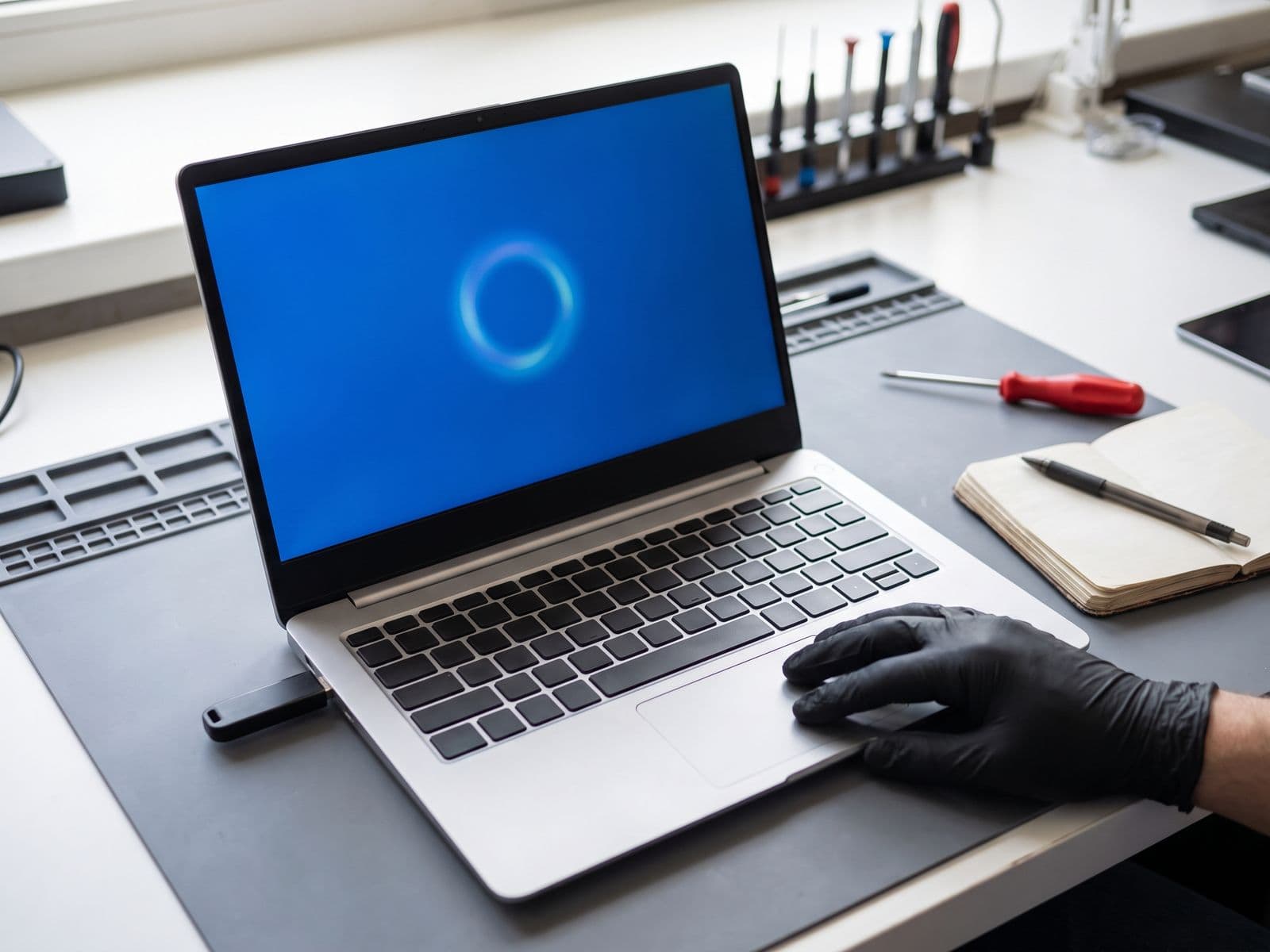
Step 4: Start in Safe Mode
- Force the laptop off with the power button two or three times during start-up until Windows shows Automatic Repair.
- Choose Advanced options > Troubleshoot > Advanced options > Startup Settings > Restart.
- Press 4 or F4 for Safe Mode, or 5 for Safe Mode with networking.
Safe Mode uses a basic display driver, so a graphics problem often shows up as "works here, black in normal mode". From Safe Mode you can:
- Open Device Manager > Display adapters, right-click the graphics device, and choose Properties > Driver > Roll Back Driver, or Uninstall device. Windows reinstalls a basic driver on restart.
- Open Settings > Windows Update > Update history > Uninstall updates and remove the most recent update if the problem began after it.
Step 5: Repair system files
A black screen after sign-in can also follow an interrupted update or a sudden power loss, which leave Windows files half-written. The two repair commands below check and rebuild those files. Neither one deletes your documents, but they can take a while, so leave the laptop plugged in and do not interrupt them.
In Safe Mode, open Command Prompt as administrator and run:
sfc /scannow
DISM /Online /Cleanup-Image /RestoreHealth
Wait for each command to finish, then restart.
Step 6: Test a new user profile
A damaged profile can sign in to a black screen while the rest of Windows is fine. Create a test account from Settings > Accounts > Other users > Add account (Windows 11) or Settings > Accounts > Family & other users (Windows 10), sign in with it, and see if the desktop appears. If it does, your old profile is damaged, and your files are usually still inside the old user folder.
When the black screen is hardware
Suspect hardware if:
- Windows never shows anything: no logo, no cursor, no sign-in screen.
- The black screen is the same on an external monitor.
- Lines, flickering or dim backlight appear before the screen goes black.
- It happens after a drop, liquid or heavy overheating.
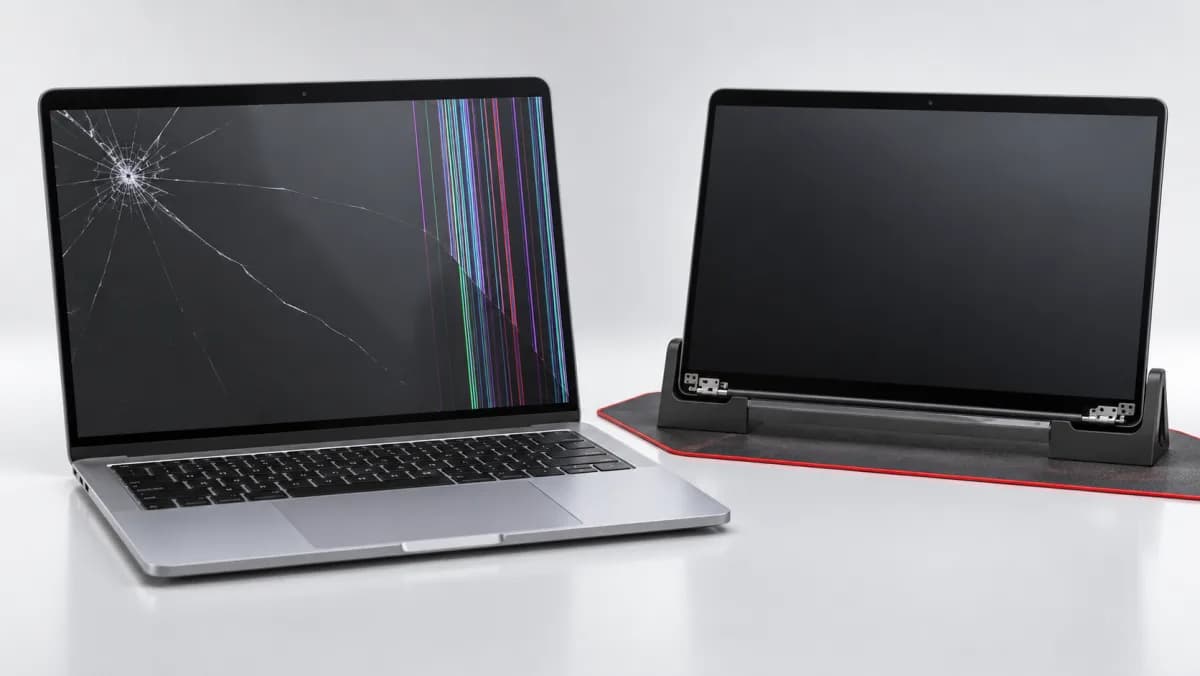
Those cases can mean a screen, cable, graphics chip or motherboard fault: see laptop screen repair or motherboard repair. If the hardware is healthy and Windows itself is damaged, our Windows reinstall for laptops is a flat RM100 for a straightforward reinstall. A reinstall erases the drive, so copy your files out first, using a new user profile or Safe Mode if needed. TechFix does not offer data recovery.
Related: Windows blue screen guide and a Windows update broke my PC.
When to bring it in
Bring the laptop in if the screen stays black on an external monitor too, Safe Mode does not help, or you see lines or flicker. We check the screen, graphics and board first and quote before any repair. Diagnosis for Windows laptops is RM100, waived when you approve the repair; see the fee policy. There is no free pickup: you courier the laptop to TechFix or walk in, and we courier it back free.
See Windows laptop repair, then book a diagnosis or WhatsApp us at 012-770 7120. We are open Monday to Friday, 9am to 6pm.