
Wi-Fi that keeps dropping is usually a router, saved network or adapter power setting problem. Try these steps; a failing Wi-Fi card needs a repair.
When laptop Wi-Fi keeps disconnecting, the cause is usually the router, a saved network profile, the adapter's power setting or an old Wi-Fi driver. A quick test settles it: if the laptop drops everywhere, suspect the laptop. If it only drops at home, suspect the router.
Work through the steps below in order.
Is it the laptop or the router?
Test the laptop on a phone hotspot or at another place, and test other devices at home.
| What you see | Likely cause |
|---|---|
| Laptop drops everywhere, other devices stay connected | Laptop settings, driver or Wi-Fi card |
| Laptop is fine elsewhere, drops only at home | Router, channel or distance |
| Every device at home drops | Router or internet line |
| Drops only far from the router | Signal strength |
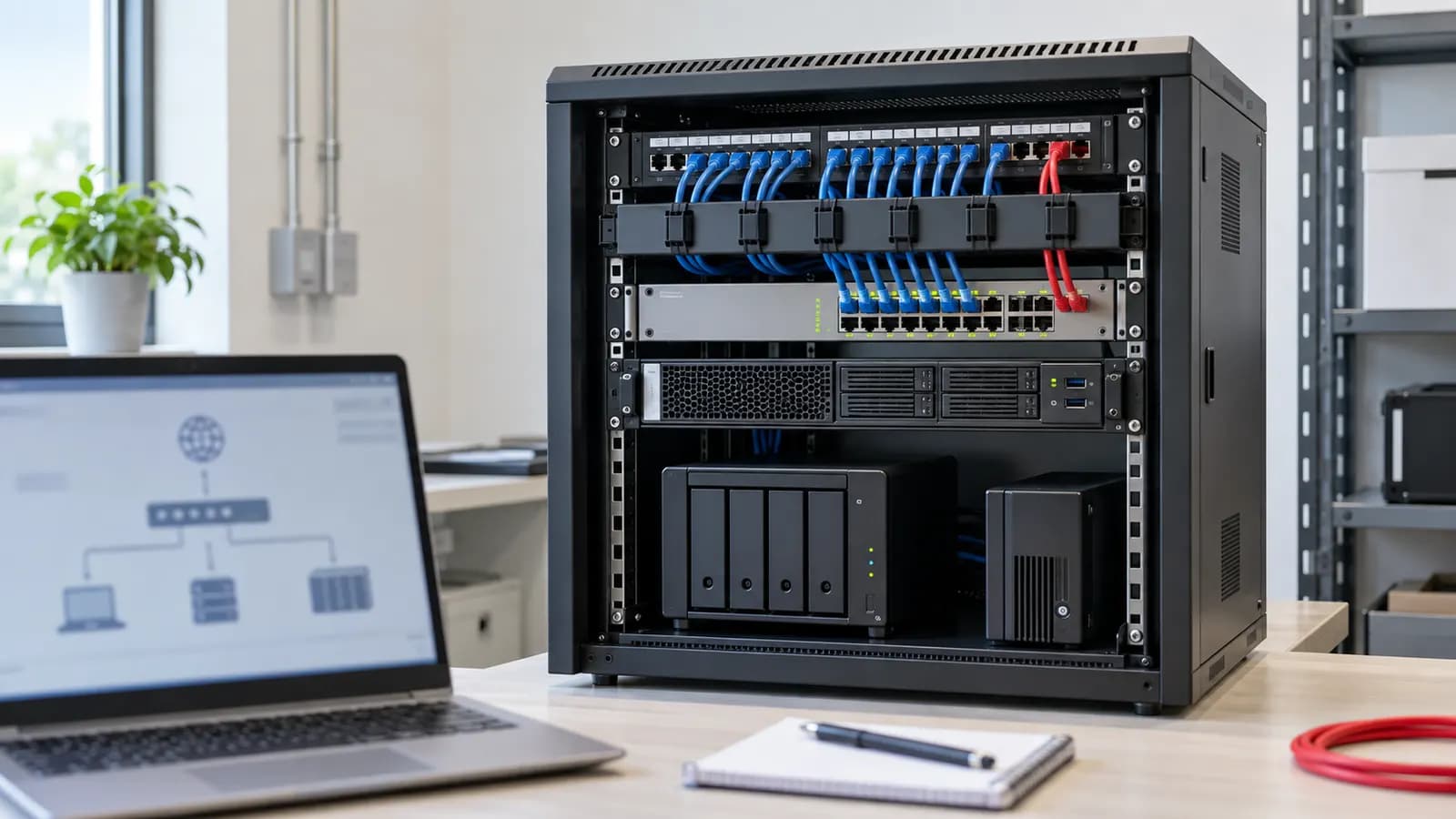
If it works everywhere except home, the router is the likely cause, so restart it, move closer, and check its settings. An office network with many devices may need a proper setup, see office Wi-Fi setup for small business.
Quick fixes first
- Turn Wi-Fi off and on, or switch Airplane mode on and off.
- Restart the laptop and the router.
- Move closer to the router and away from microwaves and thick walls.
- If the router has two bands, try both. The 2.4 GHz band reaches further; the 5 GHz band is faster at close range but weaker through walls.
Forget and re-add the network
- Open Settings > Network & internet > Wi-Fi > Manage known networks.
- Choose your network and select Forget.
- Reconnect and enter the password again.
A corrupted saved profile can cause repeated drops, and a new connection often clears it.
Stop Windows turning the adapter off
Windows can switch the Wi-Fi adapter off to save power.
- Open Device Manager and expand Network adapters.
- Right-click your Wi-Fi adapter and open Properties > Power Management.
- Untick the first option about letting the computer turn off the device to save power (the sentence starts with Allow), and select OK.
Also set Power mode to a balanced or performance option while plugged in.
Update the Wi-Fi driver and reset the network
- In Device Manager, right-click the Wi-Fi adapter and choose Update driver. If that fails, use Uninstall device, restart and let Windows reinstall it.
- Check the laptop maker's site for a newer Wi-Fi driver for your model.
- If the problem persists, try Settings > Network & internet > Advanced network settings > Network reset. This removes all saved networks and network adapters' settings, then reinstalls them, so keep your Wi-Fi passwords ready.
Renew the connection and try random hardware addresses
Open Terminal (Admin) and run these commands one at a time:
- ipconfig /release
- ipconfig /renew
- ipconfig /flushdns
If drops continue on one network, open Settings > Network & internet > Wi-Fi, choose that network's properties and set Random hardware addresses to Off for it. Some routers handle changing addresses poorly.
Tell a weak signal from a real drop
Open Terminal and run ping 8.8.8.8 -t, then watch for lines that say the request timed out (press Ctrl + C to stop). If pings fail while the Wi-Fi icon still shows connected, the link itself is dropping. If pings work but websites do not load, the problem is more likely DNS, which the ipconfig /flushdns step above usually fixes. Run the test close to the router and again in the room where it fails, so you can see whether distance is the cause.
When the Wi-Fi card or antenna is the problem
If the laptop drops on every network, loses signal a few metres from the router, shows no Wi-Fi option at all, or Bluetooth also acts up, the Wi-Fi card or its antenna cables may be at fault. Antenna cables can loosen after a drop or a screen repair, and cards can fail with age or heat. This is hardware, and our Wi-Fi and Bluetooth repair service covers it. Nothing in Windows can fix a loose antenna cable or a failing card.
If Windows itself seems damaged, a Windows reinstall may help, but check the hardware signs first. If the laptop also restarts at random, see why a laptop keeps restarting.
Other things that look like Wi-Fi problems
Some drops are not the Wi-Fi card at all. A VPN or security program can cut connections when it reconnects, so pause it briefly to test. A crowded channel in a block of flats can cause drops in the evening, and many routers let you choose a less busy channel. An old router that has run for a long time sometimes needs a restart on a schedule, or replacing. If Bluetooth devices also stutter, remember that they share the same radio on many laptops, which makes a card or antenna fault more likely.
When to bring it in
Bring the laptop to us if:
- it drops Wi-Fi on every network, not only at home;
- Wi-Fi shows no networks or the adapter vanishes from Device Manager;
- signal is poor close to the router;
- the problem began after a drop, a screen repair or liquid contact;
- the steps above made no difference.
You can book online, read the fee policy, or WhatsApp 012-770 7120. We are open Monday to Friday, 9am to 6pm. You can walk in or courier the laptop to us, and we courier it back free. TechFix supplies all parts. See our laptop repair page for the full service.