
No sound on your laptop is usually the wrong output device, mute or a driver fault. Follow these Windows steps, then check speakers and the mic.
When a laptop has no sound, the cause is usually the wrong output device, a muted channel, the Windows Audio service or an audio driver, all of which you can fix yourself. If every software step fails and even headphones give nothing, the speakers or audio hardware may have failed.
Work through the steps below in order.
Why is there no sound from my laptop?
Sound can fail at several points between the app and your ears.
| Cause | What you notice | Who fixes it |
|---|---|---|
| Wrong output device selected | Sound plays on a TV, speaker or earbuds you forgot | You |
| Muted or low volume in the mixer | One app silent, others fine | You |
| Bluetooth device connected nearby | Sound goes to a speaker or headset not in use | You |
| Windows Audio service stopped | Red X on the speaker icon, no devices | You |
| Audio driver problem | Worked before an update or restart | You |
| Blown speakers or board fault | Crackle, distortion or silence on all outputs | Hardware repair |
Check the output device and volume
- Click the speaker icon in the taskbar, and click the arrow beside the volume slider to see the list of output devices.
- Choose Speakers (your laptop speakers), not HDMI, a TV or a Bluetooth device.
- Turn volume up, and check the Fn key row for a mute key (often F1, F2 or F10). Some laptops need the Fn key held.
- Right-click the speaker icon and open Volume mixer. Check that the app you are using is not turned down or muted.
- Turn off Bluetooth for a moment. A Bluetooth speaker or earbuds nearby can quietly take over the sound.
Run the Windows audio troubleshooter
Open Settings > System > Sound. Scroll to Advanced and use Troubleshoot common sound problems, or open Output devices, select your speakers and choose Troubleshoot. Follow the prompts, and restart if it asks.
Restart the Windows Audio service
- Press Windows key + R, type services.msc and press Enter.
- Find Windows Audio and Windows Audio Endpoint Builder.
- Right-click each and choose Restart. If one is stopped, choose Start and check that Startup type is Automatic.
Fix the audio driver
- Open Device Manager and expand Sound, video and game controllers.
- Right-click your audio device (often Realtek Audio or an Intel Smart Sound entry) and choose Update driver.
- If sound broke after an update, open Properties > Driver and choose Roll Back Driver if it is available.
- If that does not work, choose Uninstall device, restart, and let Windows reinstall it.
Also look for a yellow warning mark on the device, and for audio devices hidden under Audio inputs and outputs. If the failure began after a Windows update, see our guide to updates that break a PC.
Turn off audio enhancements
Enhancements can cause crackle or silence. In Settings > System > Sound, open your speakers and set Audio enhancements to Off, then test again. On older Windows versions, use More sound settings > Playback, open the speakers' Properties and use the Enhancements tab.
Headphone jack and microphone problems
If sound stays on the speakers when headphones are plugged in (or the other way round), the jack's sensing switch may be dirty or worn. Plug and unplug the headphones a few times and test with another pair. If the microphone is the problem, check Settings > System > Sound > Input and Settings > Privacy & security > Microphone. If it still fails after the settings are correct, see microphone repair.
Rule out a Windows profile problem
Create a second Windows user account (Settings > Accounts > Other users), sign in to it and test the sound. If sound works there, the fault is in your own profile settings rather than the hardware or the driver. Also test in a different app, such as a local video file and a browser, to see whether only one program is affected.
When the problem is hardware
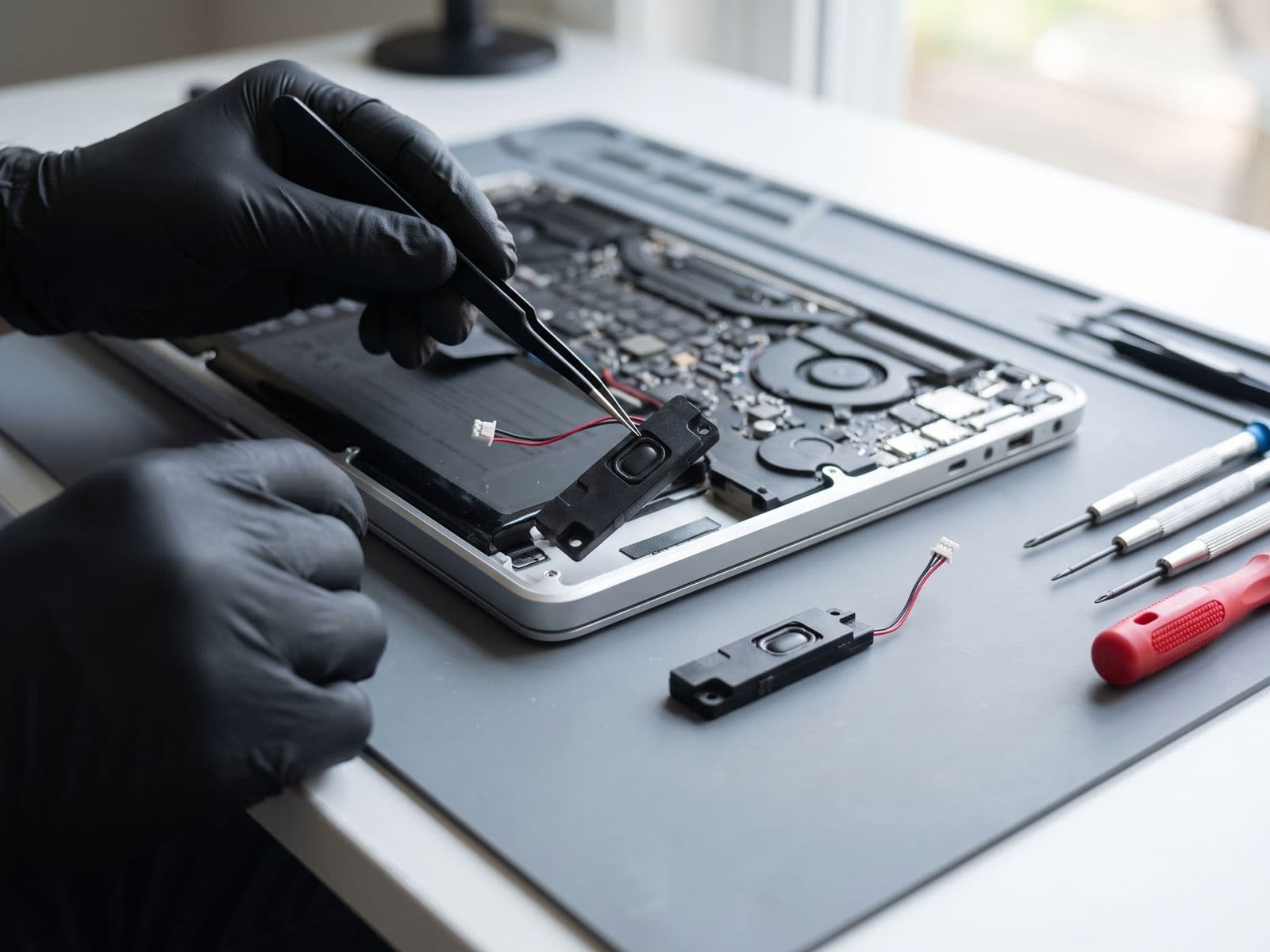
Signs of hardware failure: crackling or distortion on every output, one side silent, no sound even in the BIOS or with headphones, or sound that stops after a knock or liquid spill. Speakers can blow or their connectors can loosen, which is a speaker repair job. If the speakers and headphones both fail while Windows shows the device working, the audio circuit on the board may have failed, which is a motherboard repair matter. If audio problems come with freezing or crashes, see Windows blue screen causes and fixes.
Sound missing in only one app or browser
If other apps play sound but one does not, the problem is local to that app. Check that its tab is not muted (browsers show a speaker icon on the tab), that its volume is up in Volume mixer, and that the app's own audio settings point to Speakers. Video call apps often keep their own output and input device choice, so open their audio settings and pick the correct device. Restart the app, then restart the laptop if it still stays silent.
When to bring it in
Bring the laptop to us if:
- sound is missing on both speakers and headphones after the steps above;
- speakers crackle, buzz or sound distorted;
- the microphone or headphone jack does not work;
- audio stopped after a drop or liquid contact.
You can book online, read the fee policy, or WhatsApp 012-770 7120. We are open Monday to Friday, 9am to 6pm. You can walk in or courier the laptop to us, and we courier it back free. TechFix supplies all parts. If a Windows reinstall is the right fix, see Windows reinstall. Back up your files first, because TechFix does not offer data recovery.