
A laptop battery that drains fast is usually a heavy app, a bright screen or an old battery. Check usage, run a battery report, and know when to replace it.
A laptop battery that drains fast is usually caused by software (a heavy app, a high-performance power mode, a bright or high-refresh screen) or by a battery that has worn out with age. Settings explain most cases. A battery report tells you whether the cells themselves have lost capacity.
This guide goes from the easiest checks to the hardware answer, so you do not replace a battery that was fine.
What makes a laptop battery drain fast?
The cause is either something using too much power or a battery that holds too little.
| Cause | What you notice | Who fixes it |
|---|---|---|
| One app using a lot of power | Battery falls fast while one program is open | You |
| Performance power mode or max brightness | Fast drain, warm laptop | You |
| High refresh rate screen | Drain is worse than a friend's similar laptop | You |
| Many background apps | Drain even when the lid is closed or idle | You |
| Heat (dust, blocked vents, hot rooms) | Fans loud, drain faster after a while | Cleaning, thermal service |
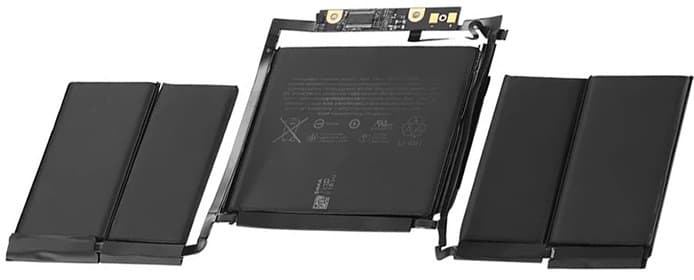
| Worn battery | Falls quickly from 100%, shuts off at a high percentage | Battery replacement |
Which apps are draining the battery?
Windows shows battery use per app, so start there.
- Open Settings > System > Power & battery.
- Open Battery usage and switch the range to the last 7 days.
- Look at the top apps. Browsers with many tabs, video calls, game launchers and cloud sync tools are the usual causes.
If an app you rarely use sits near the top, close it, or stop it running in the background (open Settings > Apps > Installed apps, choose the three dots beside the app, then Advanced options, and change the background permission).
Power mode, brightness and refresh rate
These three settings change battery life more than most people expect.
- In Settings > System > Power & battery, set Power mode to Best Power Efficiency while on battery.
- Turn on Battery saver so it starts automatically at a level you choose.
- Lower brightness in Settings > System > Display. The screen is usually the biggest single user of power.
- If your laptop has a high-refresh screen, open Settings > System > Display > Advanced display and choose a lower refresh rate while on battery. Some laptops do this by themselves; many do not.
Also check keyboard backlight and any RGB lighting, and unplug USB devices you are not using, because they draw power too.
Check battery wear with a battery report
A battery report compares what the battery was designed to hold with what it holds now.
- Right-click Start and open Terminal (Admin) or Windows PowerShell (Admin).
- Type powercfg /batteryreport and press Enter. Windows prints where it saved the report (usually in your user folder).
- Open the HTML file in a browser and find Installed batteries.
- Compare Design capacity with Full charge capacity.
If full charge capacity has fallen well below design capacity, the battery has worn out and software tweaks will only help a little. The report also lists cycle count on many laptops and a history of recent usage, which helps you see whether the drain started suddenly (more likely software or a fault) or slowly over months (more likely wear).
Heat and age
Lithium-ion batteries wear faster when they are hot and when they sit at 100% for long periods. Dust and blocked vents make a laptop run hot, which also makes the fans work harder and drains the battery faster. Leaving a laptop on a soft bed or sofa blocks the intake vents. If the laptop is loud and hot even when idle, the problem may be cooling rather than the battery, and our laptop thermal overhaul service covers that.
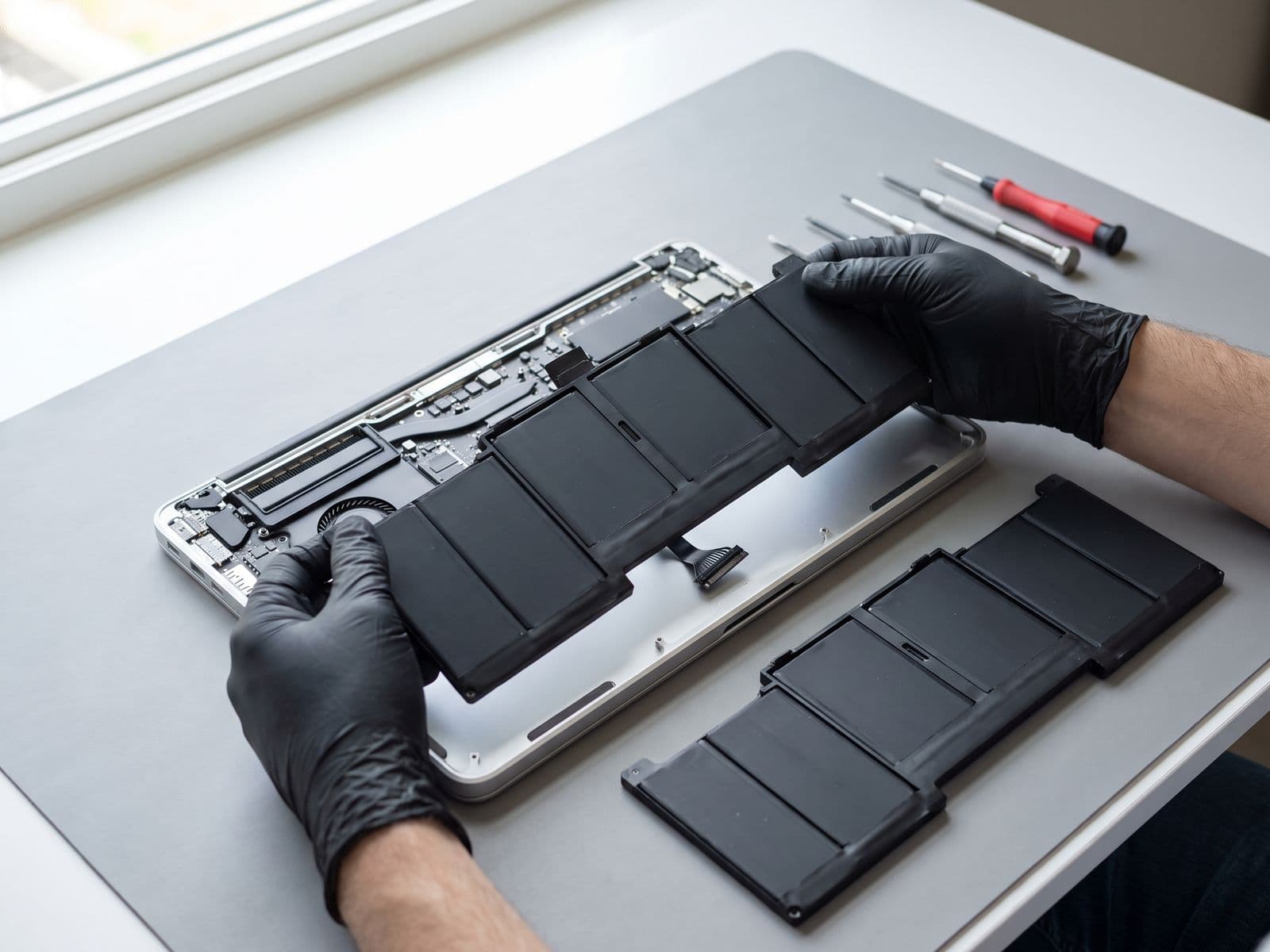
Batteries are consumables. After a few years of regular use, a drop in battery life is normal and is a replacement job, not a fault in Windows.
When to replace the battery
Replace it when the report shows a large loss of capacity, when the laptop shuts off while the screen still shows a charge, or when the battery lasts only a short time even after the settings above. Do not keep using a battery that is swollen. If the trackpad or base looks raised, read what to do about a swollen laptop battery first.
If the laptop also restarts or shuts off by itself, see why a laptop keeps restarting.
MacBook owners: use the steps in how to check MacBook battery health and see MacBook battery replacement.
Habits that slow battery wear
Small habits add up over the years:
- Keep the laptop on a hard surface so the vents can breathe, especially in a hot room or car.
- If your laptop maker offers a battery care or charge limit option, use it when the laptop stays plugged in most of the day.
- Avoid leaving it charging under a pillow, blanket or bag.
- Use the charger made for your laptop. Wrong or damaged chargers can stress the battery and the charging circuit.
- Keep Windows, the BIOS and drivers up to date, because power management fixes arrive through updates.
Avoid downloading so-called battery booster or cleaner apps. They add background load and do not change how much the cells can hold.
When to bring it in
Bring the laptop to us if:
- the battery report shows a large loss of capacity;
- the laptop shuts off suddenly while it still shows a charge;
- the laptop only works while plugged in;
- the battery looks swollen or the base is bulging (contact us first, see our swollen battery guide).
For Windows laptops, see our battery replacement page. TechFix supplies the replacement battery; we do not fit batteries you bought yourself. You can book online, read the fee policy to see how diagnosis works, or WhatsApp 012-770 7120. We are open Monday to Friday, 9am to 6pm. You can walk in or courier the laptop to us, and we courier it back free.