
Lines on an iMac screen come from the panel, display cable, graphics or heat. Run a screenshot test, Safe Mode and Apple Diagnostics to narrow it down.
Lines on an iMac screen come from the display panel, the display cable, the graphics chip or the logic board, or from heat. A simple screenshot test tells you a lot: if the lines are not in the screenshot, the fault is on the display side, not the Mac's software or graphics output.
Do these checks before you decide on a repair.
What the lines tell you
| What you see | Likely cause |
|---|---|
| Vertical or horizontal lines that stay still | Display panel or display cable |
| Coloured lines or bands | Panel, cable or graphics fault |
| Lines that appear after the iMac warms up | Heat-related fault: graphics chip, board or cable |
| Lines that change when the screen or case is pressed or moved | Loose or damaged display cable or connector |
| Lines plus glitches in the picture, freezes or crashes | Graphics chip or logic board |
| Lines only in one app or after an update | Software or driver issue |
1. The screenshot test
- Press Shift + Command + 3 to take a screenshot.
- Open the screenshot file on the desktop.
- Look at it on the same screen, then if you can, on another device.
If the lines are in the screenshot, the Mac is producing them: software, graphics or the logic board. If the screenshot looks clean while the screen still shows lines, the fault is more likely the panel or the cable. This is a guide, not proof, but it helps narrow the cause.
2. Try an external display
If your iMac supports it, connect an external monitor. Not all models can show another image, so check yours. If an external monitor looks perfect while the built-in screen has lines, the Mac's graphics are probably fine and the screen side is faulty. If the external monitor also shows lines, graphics or the logic board is a stronger suspect.
3. Software checks
- Start in Safe Mode. On an Intel iMac, restart and hold Shift until the login window appears. On an Apple silicon iMac, shut down, then hold the power button until startup options appear, choose your disk, hold Shift and click Continue in Safe Mode.
- Reset NVRAM (Intel only). Restart and hold Option + Command + P + R for about 20 seconds. Apple silicon iMacs do not have a manual NVRAM reset.
- Run Apple Diagnostics. On an Intel iMac, restart and hold D. On an Apple silicon iMac, shut down, hold the power button until startup options appear, then press Command + D. Note any reference code it shows.
- Update macOS. Open System Settings > General > Software Update (or Apple menu > System Preferences > Software Update on older macOS).
If the lines are present even in Safe Mode, at the startup screen or in Recovery, the issue is almost certainly hardware.
4. Causes when it is hardware
- Display panel: damaged liquid crystal layers show lines that never change.
- Display cable (LVDS or eDP): a worn, loose or heat-stressed cable causes lines that come and go.
- Graphics chip or logic board: heat and age can cause coloured lines, artefacts and crashes.
- Heat: blocked airflow and dust make graphics faults appear sooner.
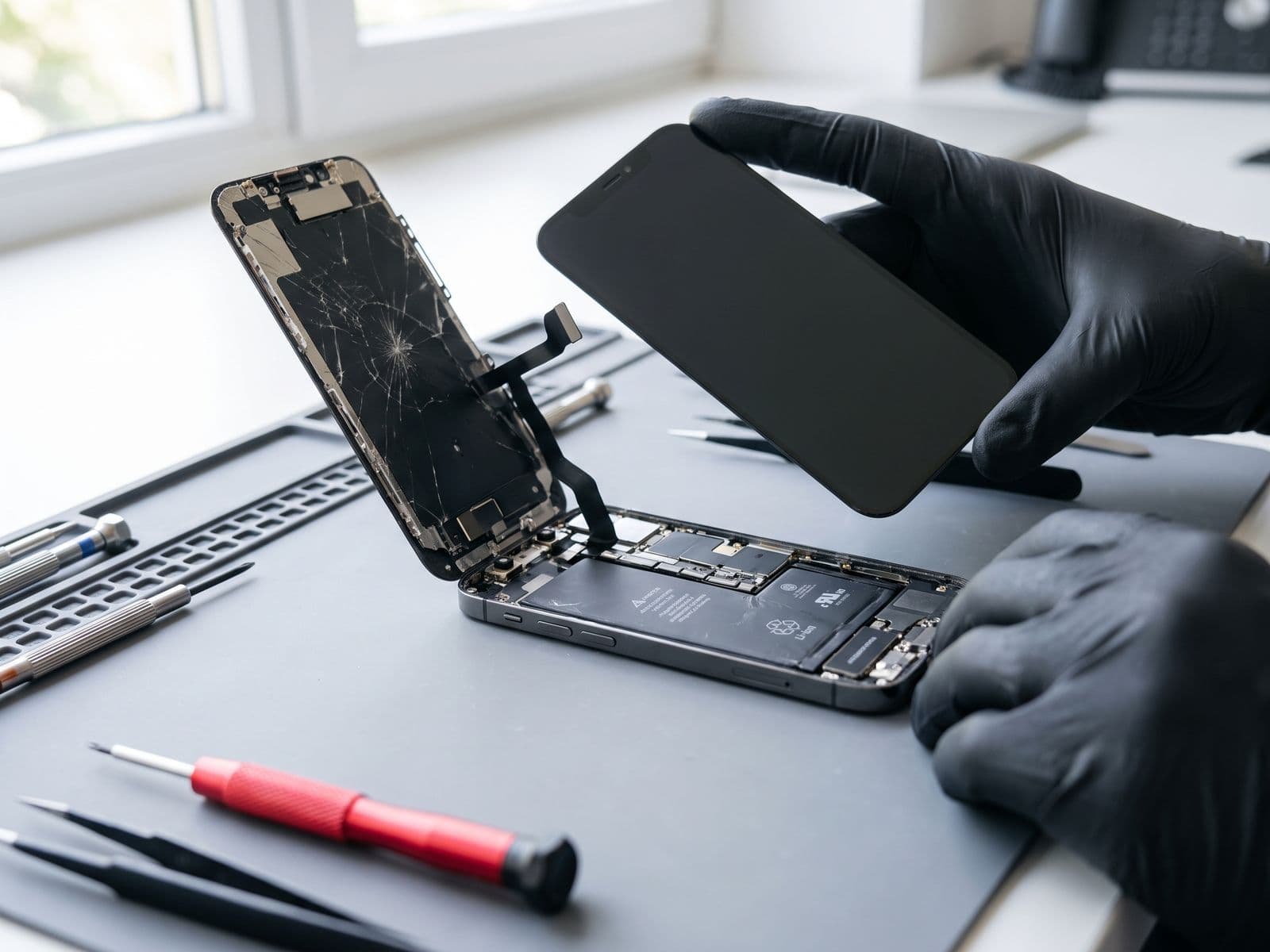
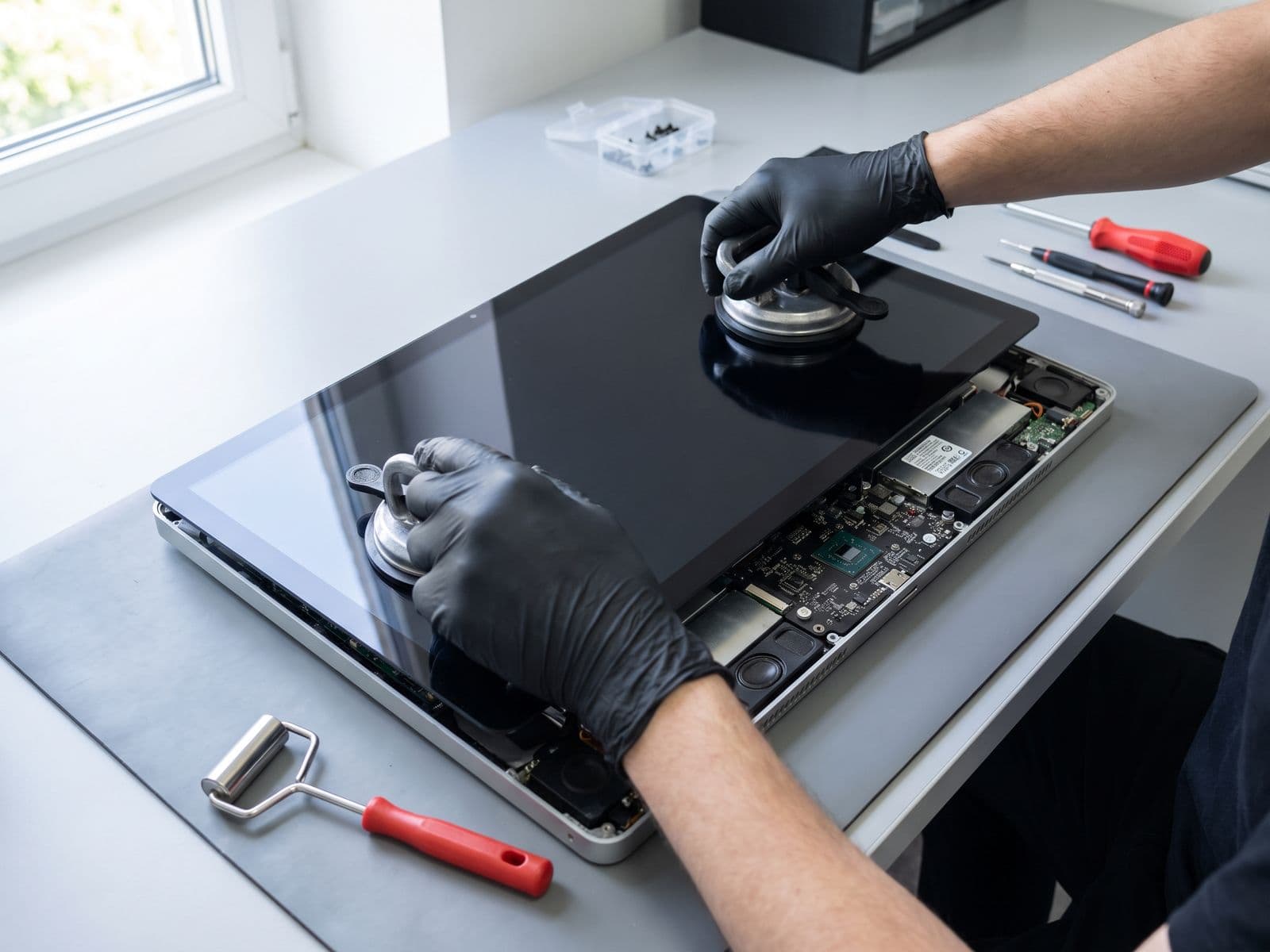
The glass on an iMac is bonded to the panel, and the power supply holds a charge, so do not open it yourself. If the display is the problem, see iMac screen replacement or the iMac screen replacement service. If it points to the board, see iMac logic board repair. Our iMac repair page covers everything else.
When to bring it in
Bring the iMac in if the lines are not in a screenshot, remain in Safe Mode, or come with crashes. Back up first if you can. TechFix does not offer data recovery. You can book a repair and courier the iMac in or walk in; we courier it back at no charge. The iMac diagnosis fee is RM150, waived when you approve the repair; see the fee policy. We are open Monday to Friday, 9am to 6pm. Questions? WhatsApp 012-770 7120.