
Black camera screen, blur or "Camera not available" after an iOS update? Try these settings and restart steps first, then see when the lens or OIS needs repair.
If your iPhone camera shows a black screen, will not focus or shows "Camera not available" after an iOS update, start with software steps: force-close the Camera app, restart, check Screen Time restrictions and update to the latest iOS version. If it still fails, the camera module may be the problem.
An update does not damage hardware by itself. But a camera module that was already starting to fail can show its first symptoms right after a restart or update, which is why the two seem linked.
What kind of camera problem do you have?
Match your symptom to the likely cause before you try fixes.
| Symptom | Likely cause |
|---|---|
| Black screen when Camera opens | Software glitch, Screen Time restriction, or a failing camera module |
| Flickering or very blurry picture | Dirty lens, case or protector in the way, or a failing module |
| Shaky, jittery or vibrating live view | Optical image stabilisation (OIS) fault |
| "Camera not available" message | Software or restriction, sometimes hardware |
| Only the front or only the rear camera fails | Points to one specific module |
1. Quick software steps
- Force-close Camera. Swipe up from the bottom of the screen and hold (or double-press Home on older iPhones), then swipe the Camera app away. Reopen it.
- Restart the iPhone. Switch it off, wait, switch it on again.
- Check Screen Time restrictions. Go to Settings > Screen Time > Content & Privacy Restrictions > Allowed Apps and make sure Camera is switched on. A restriction here can make the app disappear or refuse to open.
- Switch cameras and lenses. Flip between front and rear, and between each rear lens (wide, ultra-wide, telephoto where your model has them). Note which ones work.
- Update iOS. Go to Settings > General > Software Update. If the problem began on one iOS version, a later point release may include a fix.
2. Check the case, protector and accessories
A thick third-party case, a cracked or misaligned lens protector, or a clip-on lens can cause blur, a dark ring or a black corner. Take everything off and test again.
Magnetic accessories and strong magnets near the camera can also interfere with focus and stabilisation on some iPhones, so remove them for a proper test. Wipe the lens with a clean microfibre cloth too, because a smear can look like a fault.
3. Reset all settings
If it is still not working, try Settings > General > Transfer or Reset iPhone > Reset > Reset All Settings. This does not delete your photos or apps, but it resets things like Wi-Fi passwords, wallpaper and privacy settings, so be ready to set them up again.
4. When it is hardware
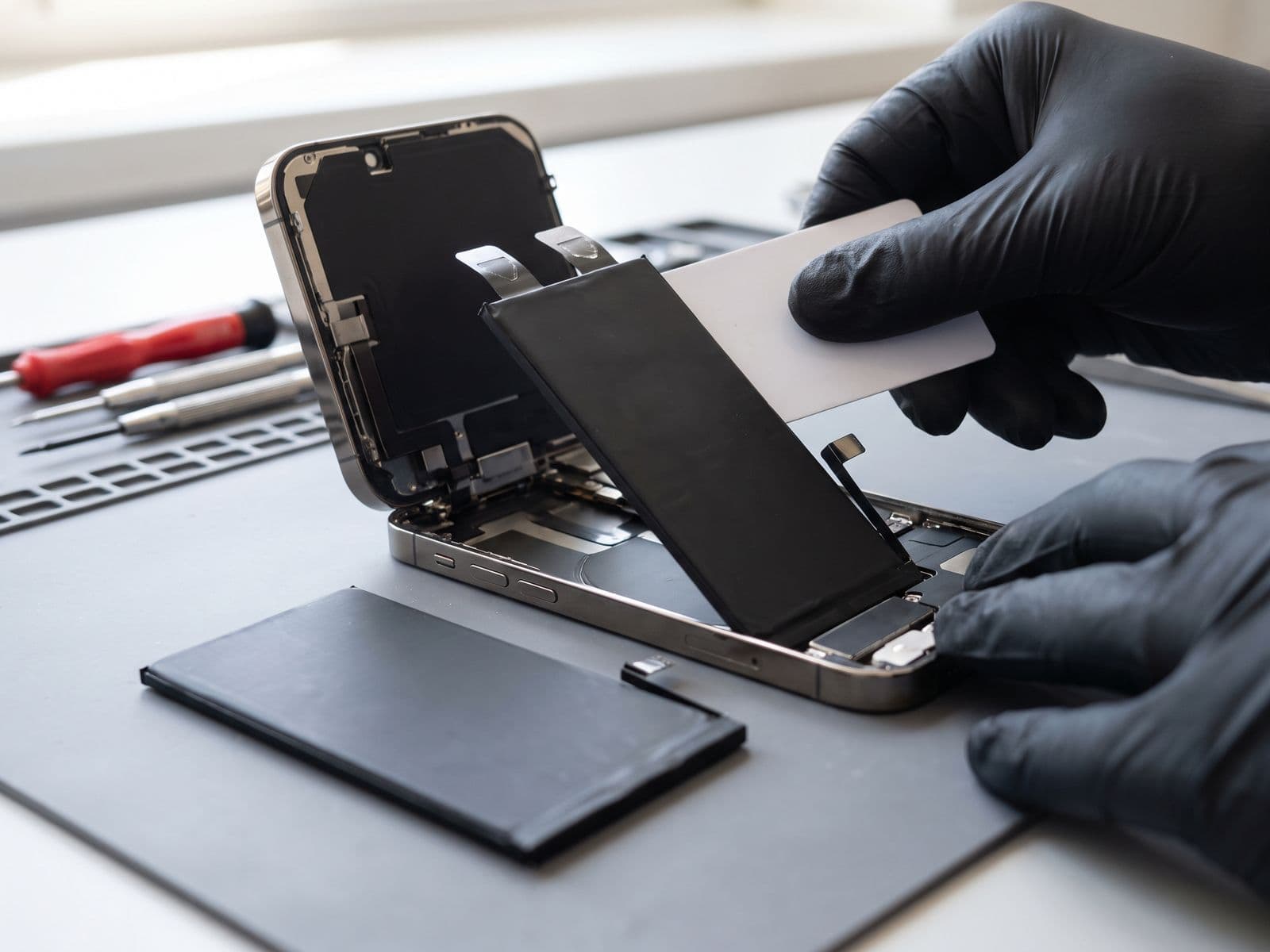
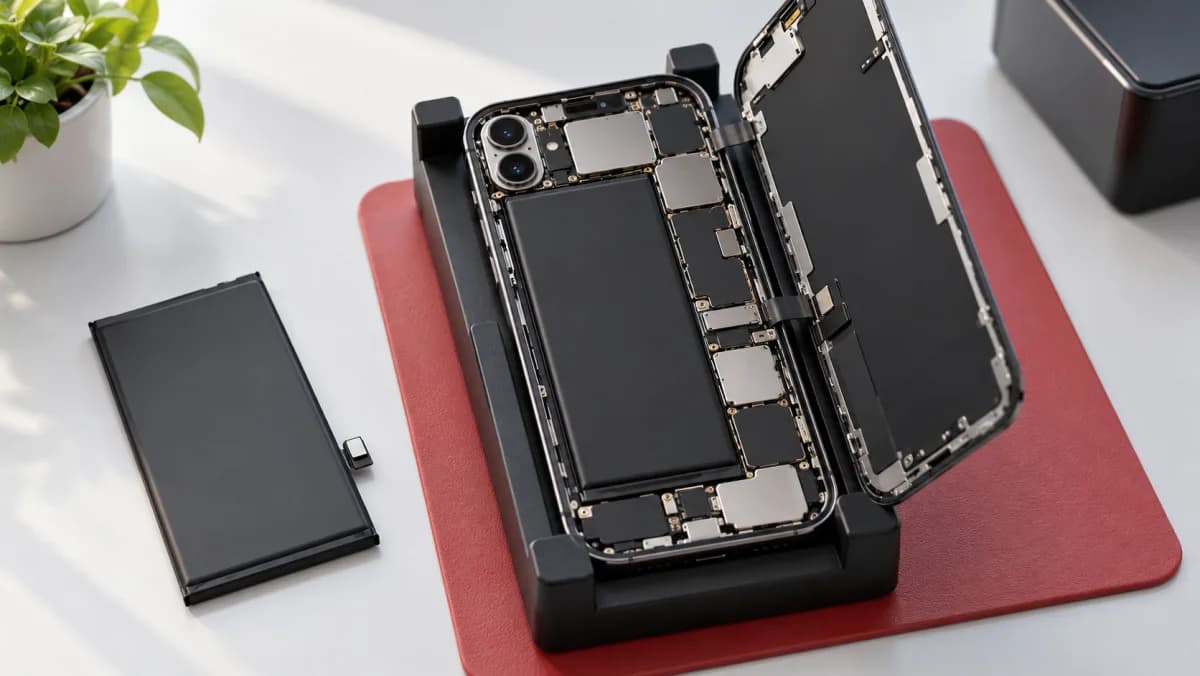
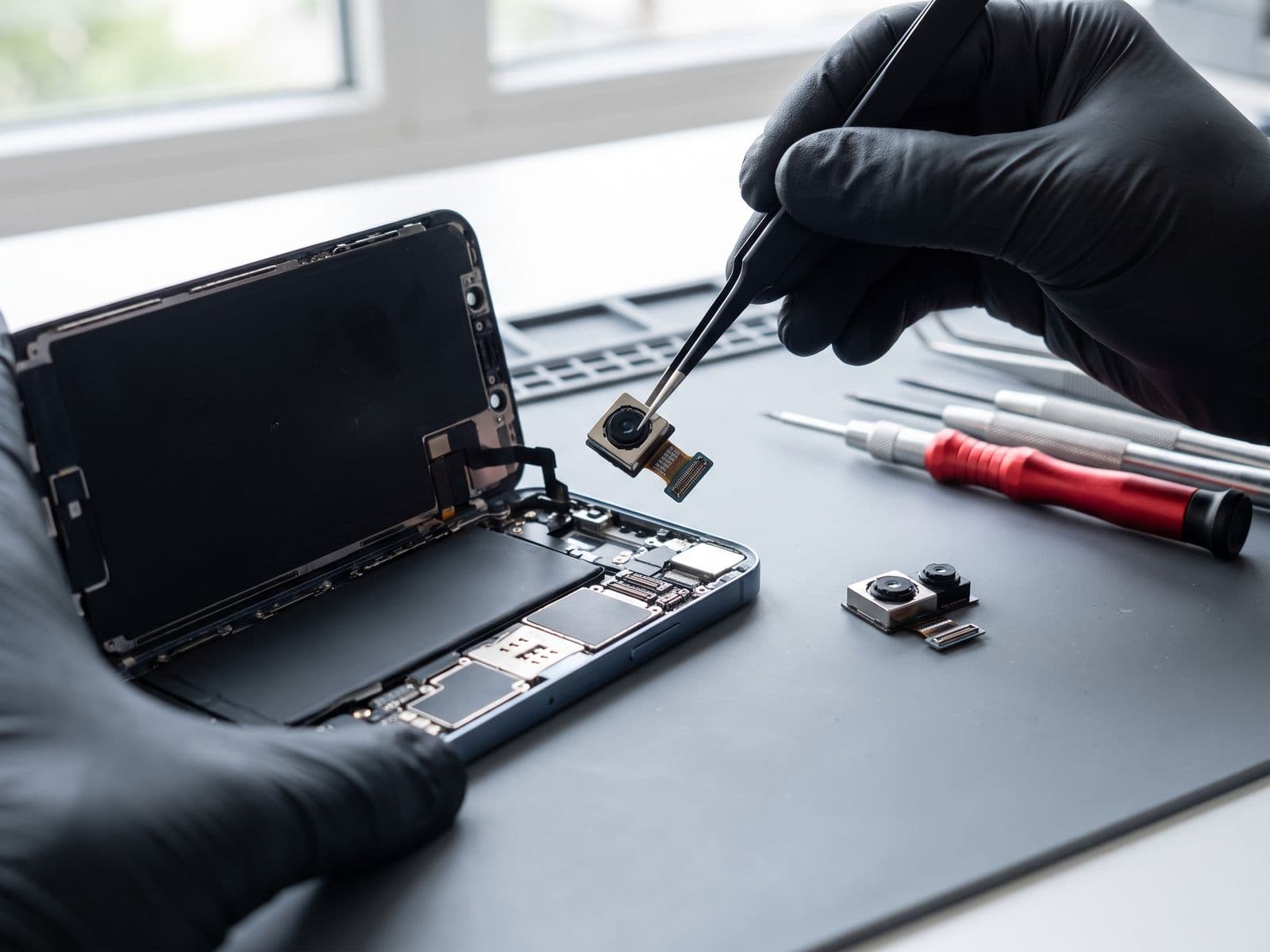
If the camera still fails after these steps, suspect the module. The usual hardware causes are:
- Lens or lens glass: cracked or scratched glass produces blur, rings or glare.
- OIS (stabilisation) failure: shaky live view, a buzzing or rattling sound when the camera opens, or a camera that cannot hold focus.
- Camera flex or connector: a black screen or "Camera not available" even though the app opens.
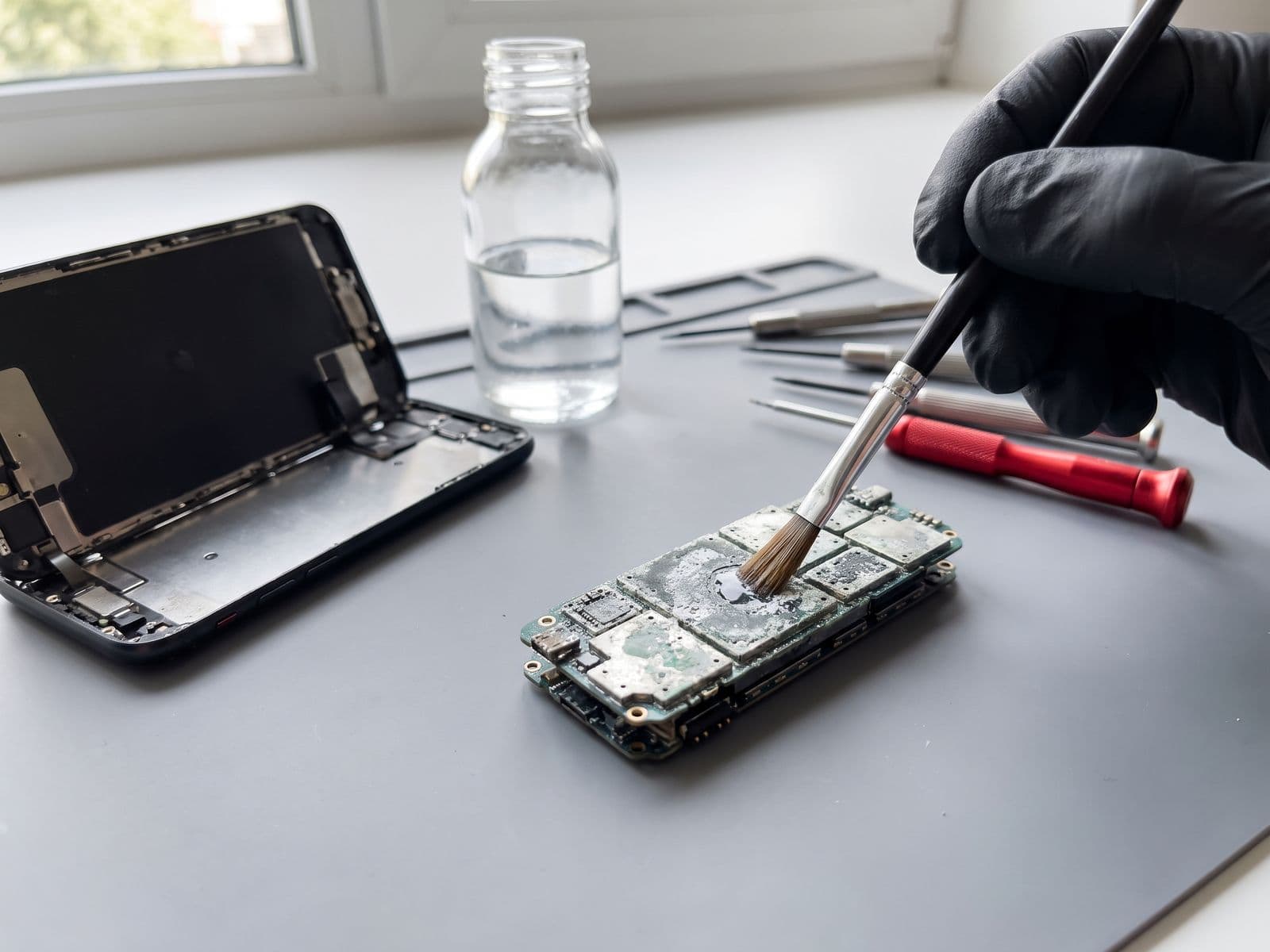
- Logic board: less common, but possible after a drop or liquid.
Apple has warned that exposing an iPhone to strong, sustained vibration, such as the high-powered engine of a motorcycle, can reduce the performance of the camera's stabilisation system. If you ride, a vibration-damped mount is worth considering.
If the module is the cause, it needs a replacement. See our iPhone camera repair page.
When to bring it in
Bring the iPhone in if the camera still fails after a restart, an update and a reset, or if the picture is shaky, blurred or black on one lens only. You can book a repair and courier the phone in or walk in, and we courier it back at no charge. The iPhone diagnosis fee is RM150, waived when you approve the repair; see the fee policy. We are open Monday to Friday, 9am to 6pm. For quick questions, WhatsApp 012-770 7120. More about our work on phones is on the iPhone repair page.