
If HDMI is not working on your laptop, check the cable, input source and Win+P mode, then update the graphics driver. A damaged port needs a board repair.
When HDMI is not working on a laptop, the cause is usually the cable, the TV input source, the display mode or the graphics driver. Work through those first. If another cable and another screen both fail, the HDMI port itself may be loose or damaged, which is a board-level repair.
The steps below go from the quickest checks to the hardware answer.
Why is my laptop not detecting the HDMI screen?
The laptop cannot see the screen because of a bad connection, a wrong setting, or a graphics fault.
| Cause | What you notice | Who fixes it |
|---|---|---|
| Wrong TV or monitor input | Laptop shows connected, screen says no signal | You |
| Display mode set to PC screen only | Nothing appears on the second screen | You |
| Wrong resolution or refresh rate | Black screen or flicker on the external screen | You |
| Graphics driver problem | Worked before an update, now not detected | You |
| Cable or adapter fault | Works with another cable | You |
| Loose or damaged HDMI port | Cable wobbles, works only at an angle | Board repair |
Check the cable, port and input source
- Unplug and firmly reconnect both ends of the HDMI cable.
- On the TV or monitor, use the remote or buttons to choose the input that matches the HDMI port you used (HDMI 1, HDMI 2 and so on).
- Try a different HDMI port on the TV.
- Try a different cable. Cables fail more often than people expect, and long or very cheap cables can fail at higher resolutions.
- Try another screen. If the laptop works on another TV or monitor, the first screen or cable is the problem.
- Restart the laptop with the cable connected, and switch the TV on first.
Set the projection mode with Win+P
Press Windows key + P and choose a mode. Duplicate shows the same picture on both screens. Extend gives you a second desktop. Second screen only turns off the laptop screen. If it is set to PC screen only, the HDMI screen stays blank.
Then open Settings > System > Display, scroll to Multiple displays, and select Detect. If the screen appears, set its resolution and refresh rate to a value the TV or monitor supports. Lower the refresh rate if the screen flickers or goes black.
Update or reinstall the graphics driver
A graphics driver that has stopped working properly is a common cause.
- Press Windows key + Ctrl + Shift + B. The screen flickers briefly as Windows restarts the graphics driver.
- Open Device Manager and expand Display adapters.
- Right-click your graphics adapter (Intel, AMD or NVIDIA) and choose Update driver, or Uninstall device and restart so Windows reinstalls it.
- If the problem began after an update, try the maker's driver page for your laptop model.
If the screen went wrong after a Windows update, see what to do when a Windows update broke your PC.
HDMI, USB-C and Thunderbolt adapters
A USB-C to HDMI adapter only works if the USB-C port supports video output (often shown as DisplayPort Alt Mode, or a Thunderbolt logo). Some USB-C ports only handle data and charging. Check the laptop specifications, and try the adapter on another laptop to rule it out.
Gaming and creator laptops often wire the HDMI port straight to the dedicated graphics chip (dGPU) while the laptop screen runs on integrated graphics. If the HDMI output is missing, check the graphics mode in the maker's app or BIOS (hybrid, discrete or MUX switch settings) and make sure the dedicated graphics driver is installed. This is a setting, not a fault.
When the HDMI port is the problem
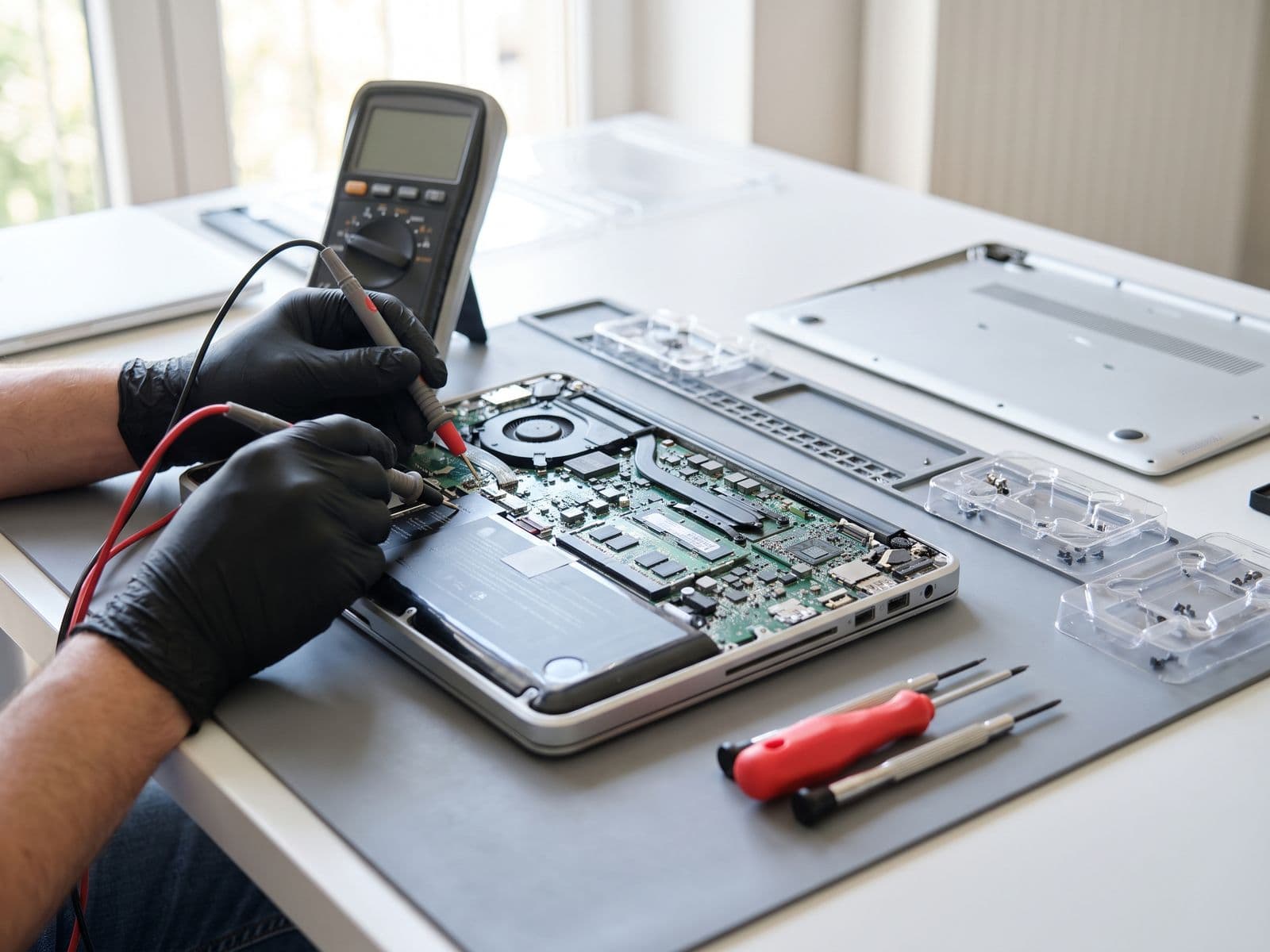
Signs of a port fault: the cable feels loose, the picture comes and goes when you touch the cable, the plastic inside the port is bent or broken, or two cables and two screens all fail while the graphics driver is healthy. We do not have a separate HDMI port replacement service. A damaged port is soldered to the mainboard, so it is a board-level repair, covered by our motherboard repair and logic board repair work. Do not keep forcing a cable into a loose port, because that can damage the board further.
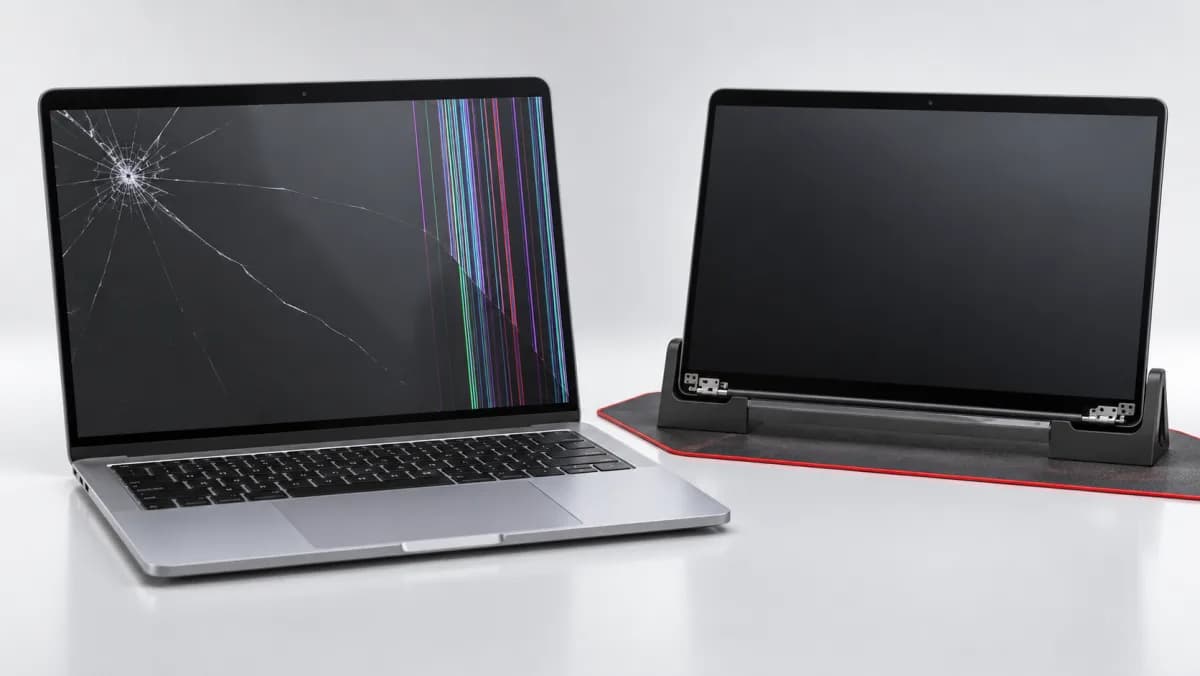
If the laptop screen itself is the problem, see laptop screen repair.
No sound through the TV over HDMI
If the picture works but the TV is silent, the sound may still be playing on the laptop speakers. Click the speaker icon in the taskbar, open the list of output devices and choose the HDMI or TV entry. If no HDMI entry appears, open Device Manager, check Display adapters and Sound, video and game controllers for warnings, and update the graphics driver, because HDMI audio is installed with it. Also check that the TV is not muted and is set to the right input.
Quick checklist before you book
- Another cable, another HDMI port on the TV, and another screen all tried.
- Windows key + P set to Duplicate or Extend, and Detect pressed.
- Resolution and refresh rate lowered.
- Graphics driver reinstalled, and graphics mode checked on gaming laptops.
- USB-C adapter tested on another laptop, if you use one.
If all five are done and there is still no signal, the port or board is the likely cause.
When to bring it in
Bring the laptop to us if:
- the port is loose, bent or damaged;
- another cable and another screen both fail;
- the external screen stopped working after a drop or liquid contact;
- reinstalling the graphics driver changed nothing.
You can book online, read the fee policy to see how diagnosis works, or WhatsApp 012-770 7120. We are open Monday to Friday, 9am to 6pm. You can walk in or courier the laptop to us, and we courier it back free. TechFix supplies all parts. Back up your files before sending, because TechFix does not offer data recovery.