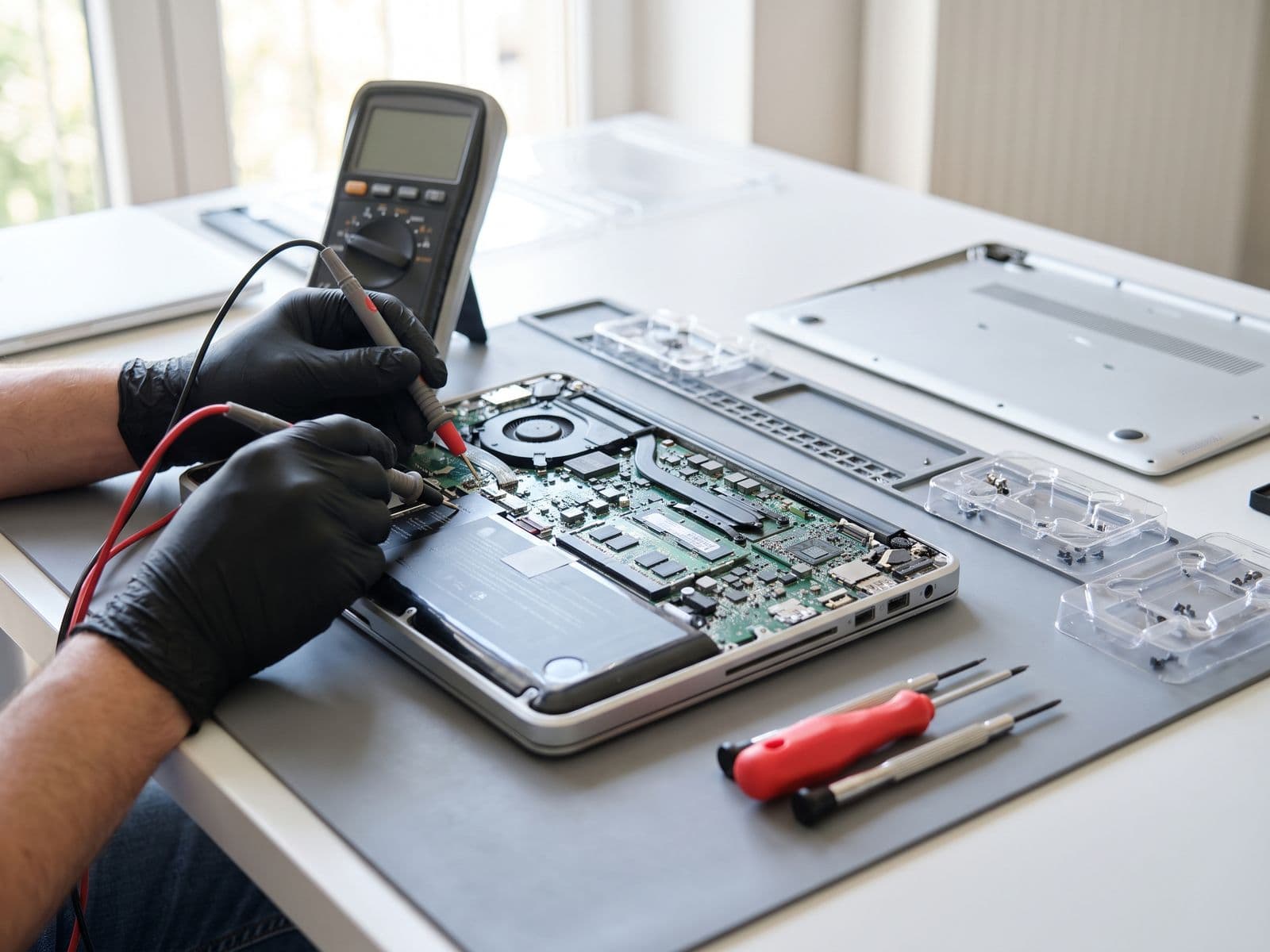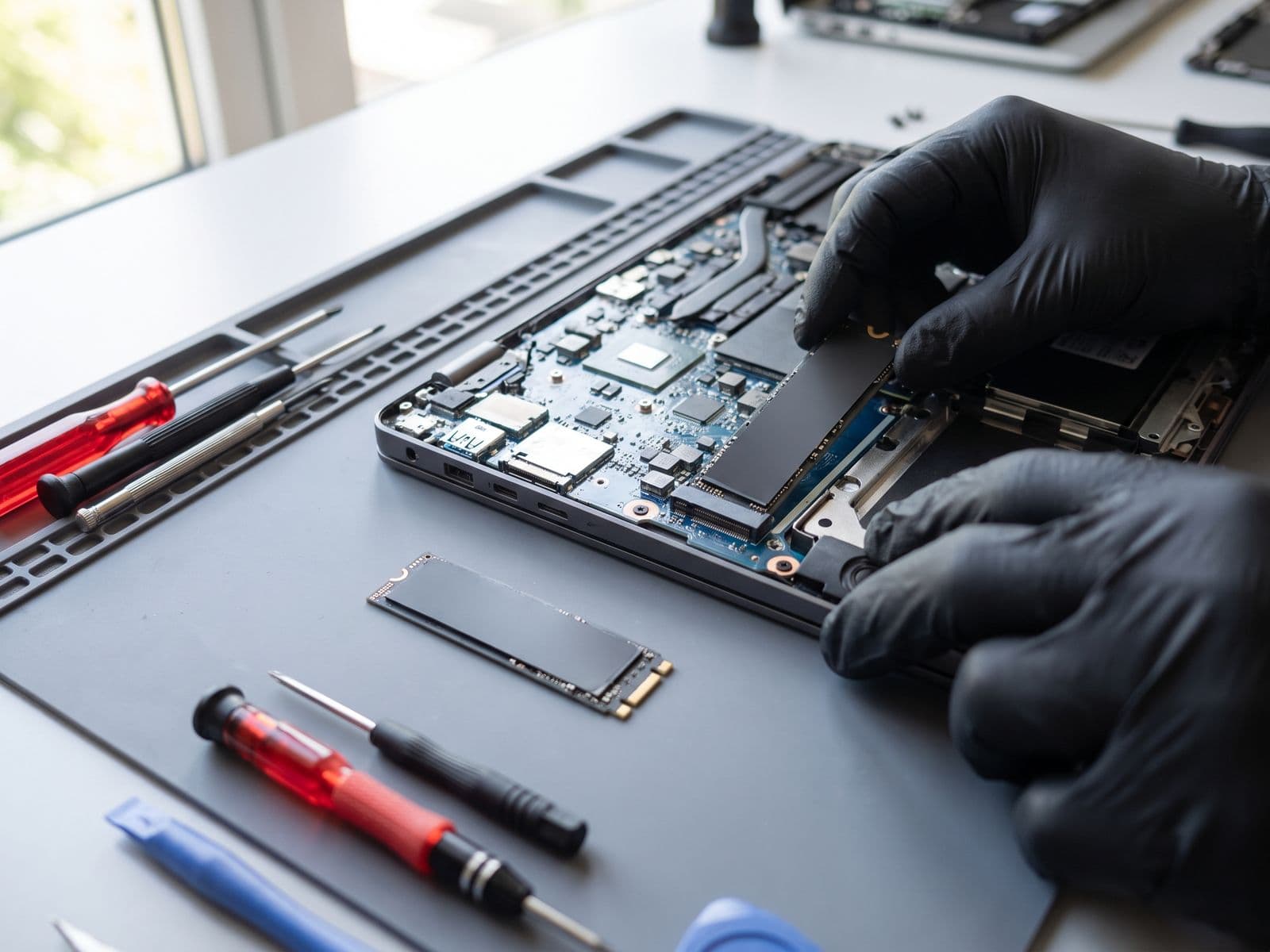

Your old HDD is why your laptop feels slow. An SSD upgrade can make an older laptop feel much faster. Same-day Sunway service, or courier it to us and we courier it back free.
The Single Best Laptop Upgrade You Can Make in 2026
If your laptop takes forever to boot, applications lag when opening, and file transfers feel painfully slow, you're likely still using a traditional hard disk drive (HDD). Upgrading to a solid-state drive (SSD) delivers the most dramatic performance improvement of any laptop upgrade, often making a 5-year-old device feel brand new.
At TechFix Malaysia, we do SSD upgrades at Sunway Geo, with courier-in service for customers outside the Klang Valley (we courier it back free). This guide explains why an upgrade makes such a difference, breaks down SSD types, and helps you choose the right upgrade.
HDD vs SSD: Understanding the Technology Gap
How Hard Disk Drives Work
HDDs store data on spinning magnetic platters read by mechanical arms. Think of it like a record player: the arm must physically move to the right track, wait for the platter to spin to the correct position, then read the data. This mechanical process creates inherent delays.
HDD Limitations:
- Mechanical parts prone to failure from drops and vibration
- Spinning platters consume significant power
- Heat generation from motor operation
- Physical seek time creates latency (5-15 milliseconds)
- Fragmentation degrades performance over time
- Loud operational noise
How Solid State Drives Work
SSDs use NAND flash memory chips with no moving parts. Data is accessed electronically, similar to USB flash drives or SD cards, but with far superior speed and durability. Think instant access to any file, regardless of where it's stored.
SSD Advantages:
- No moving parts = superior shock resistance
- Near-instant data access (0.1 milliseconds or less)
- Significantly lower power consumption (30-50% less)
- Silent operation
- Generates minimal heat
- Consistent performance regardless of file location
- 2-3x longer lifespan than HDDs
Real-World Performance Comparison
What You Will Notice
Exact timings vary by laptop, drive and what is installed, so we do not publish benchmark numbers. In everyday use, the usual differences after moving from an HDD to an SSD are:
- Windows starts up noticeably faster
- Apps and large files open much sooner
- File copies and updates finish in a fraction of the time
- The laptop stays responsive while several programs run
Types of SSDs: SATA vs NVMe vs M.2
Understanding SSD types prevents compatibility confusion and ensures you get the best performance your laptop supports.
SATA SSD (2.5-inch Form Factor)
The entry-level SSD that physically replaces traditional HDDs. Uses the same SATA III interface (6 Gbps max speed).
Best For:
- Laptops from 2012-2018 with 2.5" HDD bays
- Budget-conscious upgrades (most affordable option)
- Older systems where SATA is the only option
Performance: Up to 550 MB/s read/write speeds Price: quoted by drive and capacity; see the laptop SSD upgrade prices Brands We Stock: Samsung 870 EVO, Crucial MX500, WD Blue
M.2 SATA SSD
Same SATA III speed limits but in compact M.2 stick form factor. Often confused with NVMe due to identical physical appearance.
Best For:
- Thin laptops with M.2 slots (2016-2019 models)
- When NVMe isn't supported but M.2 slot exists
- Secondary storage drives in dual-drive setups
Performance: Up to 550 MB/s (SATA III bottleneck) Price: quoted by drive and capacity; see the laptop SSD upgrade prices
M.2 NVMe SSD (PCIe Interface)
The fastest consumer SSD technology, using PCIe lanes directly connected to CPU. Available in PCIe Gen 3 (most common) and Gen 4 (cutting-edge).
Best For:
- Laptops from 2019+ with M.2 PCIe slots
- Content creators working with 4K video
- Gaming laptops
- Users wanting maximum future-proofing
Performance:
- PCIe Gen 3: 3,500 MB/s read, 3,000 MB/s write
- PCIe Gen 4: 7,000 MB/s read, 5,000 MB/s write
Price: quoted by drive and capacity; see the laptop SSD upgrade prices Brands We Stock: Samsung 980 Pro, WD Black SN850X, Crucial P5 Plus
M.2 Size Matters: 2242, 2260, 2280
M.2 drives come in different lengths: 22mm wide by 42mm, 60mm, or 80mm long. Most laptops use 2280 (80mm length). Always check your laptop's M.2 slot specifications before purchasing.
SSD Upgrade Cost at TechFix Malaysia
Prices below are drive prices from our current price list. Installation and data cloning is charged separately (RM 99 for laptop labour and cloning). Any combination not listed is quoted after diagnosis, and no work starts until you approve the quote.
| Capacity | SATA SSD | NVMe SSD (Gen 3) | NVMe SSD (Gen 4) |
|---|---|---|---|
| 256GB | RM 199 | Quote after diagnosis | Quote after diagnosis |
| 512GB | RM 299 | Quote after diagnosis | Quote after diagnosis |
| 1TB | Quote after diagnosis | Quote after diagnosis | Quote after diagnosis |
| 2TB | Quote after diagnosis | Quote after diagnosis | Quote after diagnosis |
Service includes:
- Full system backup before work begins
- Professional SSD installation
- Complete Windows/macOS migration (all files, apps, settings)
- Boot optimization and TRIM enablement
- System performance testing
- Old drive returned to customer
- 90-Day Warranty on the installation service
Turnaround Time: Same-day service available for walk-ins with appointment (2-3 hours). Standard service: next business day.
How TechFix Performs SSD Upgrades
Our Professional Migration Process
-
Pre-Upgrade Consultation (15 minutes)
- Verify laptop compatibility and available slots
- Check current drive health with diagnostic tools
- Recommend optimal SSD type and capacity
- Provide accurate quote with no hidden fees
-
Data Backup (30-90 minutes depending on data volume)
- Clone entire drive using professional imaging software
- Verify backup integrity with checksum validation
- Ensure all partitions, boot sectors, and system files captured
-
Physical Installation (20-30 minutes)
- Complete laptop disassembly following service manual procedures
- Anti-static precautions throughout
- Secure SSD mounting with proper standoffs/screws
- Thermal pad application for M.2 drives (prevents throttling)
-
Data Migration & Optimization (45-120 minutes)
- Clone backup to new SSD
- Expand partitions to utilize full capacity
- Enable AHCI mode in BIOS (if required)
- Enable TRIM for optimal long-term performance
- Disable unnecessary services (indexing, defragmentation)
-
Testing & Quality Control (15 minutes)
- Boot sequence verification
- Speed benchmarking with CrystalDiskMark
- Temperature monitoring under load
- SMART health status check
- Customer data spot-check verification
-
Customer Handover
- Performance demonstration (before vs after boot time)
- Care instructions and optimization tips
- Original HDD returned in anti-static bag
- Digital receipt with warranty details
Compatibility Check: Will an SSD Work in Your Laptop?
For Windows Laptops:
Step 1: Press Windows Key + R, type msinfo32, press Enter
Step 2: Check "System Model" to identify your exact laptop model
Step 3: Google "[Your Model] upgrade SSD" or contact us with model number
General Rules:
- Any laptop from 2010+ can use SATA SSD (2.5")
- Laptops from 2016+ often have M.2 slots
- Gaming/premium laptops from 2019+ typically support NVMe
For MacBooks:
- MacBook Air/Pro (2013-2017): Proprietary PCIe SSD (we stock compatible upgrades)
- MacBook Pro (2016-2020): Soldered storage (upgrade not possible)
- MacBook Air/Pro (M1/M2/M3): Soldered storage (upgrade not possible)
Apple's shift to soldered storage means older Intel MacBooks are often better upgrade candidates than newer models.
Unsure About Compatibility?
Send us your laptop model via WhatsApp (012-770 7120) with a photo of the bottom case label. Our technicians will reply during business hours (Monday to Friday, 9am-6pm) with compatibility confirmation.
Should You DIY or Use Professional Service?
DIY Upgrade is Reasonable If:
- You have basic technical skills and tools
- Your laptop has simple 2.5" HDD access panel
- You're comfortable with data loss risk
- You can troubleshoot boot issues independently
Professional Service Recommended If:
- Laptop requires extensive disassembly (ultrabooks)
- Working with M.2 NVMe drives (BIOS settings required)
- You have critical data without backup
- Company laptop or business-critical device
- Warranty concerns with self-service
Reality Check: Common problems with DIY installs include incorrect BIOS settings, boot loop problems, incomplete data migration, and stripped screws from improper tools.
Our installation service (labour and cloning from RM 99, plus the drive) includes expertise, professional tools, warranty protection, and peace of mind, which is often worth it versus risking an expensive laptop.
Frequently Asked Questions
Q: Will I lose my Windows license when upgrading to SSD? A: No. Windows 10/11 licenses are tied to your motherboard, not the storage drive. After SSD installation, Windows will reactivate automatically once connected to internet.
Q: How much SSD capacity do I need? A: Minimum 256GB for basic use (Office, web browsing). 512GB recommended for most users. 1TB+ for content creators, gamers, or users with large media libraries. Your new SSD should be at least equal to or larger than current used space on your HDD.
Q: Can I upgrade my laptop to SSD and keep the HDD? A: Many laptops have DVD drive bays that can be replaced with HDD caddies, allowing dual-drive setup (SSD for OS, HDD for storage). Send us your laptop model on WhatsApp and we will confirm whether it is possible and quote after diagnosis.
Q: How long do SSDs last? A: Modern SSDs typically last 5-10 years with normal use. They're rated for hundreds of terabytes written (TBW). Example: A 500GB SSD rated for 300 TBW can write 60GB daily for 13+ years before wearing out. In practice, SSDs outlast laptop lifespan.
Q: Will SSD upgrade void my laptop warranty? A: Depends on manufacturer. Dell, HP, Lenovo generally allow user upgrades. Apple warranty may be affected. We recommend checking warranty terms first or letting us handle it if under manufacturer warranty.
Q: What if my old HDD is failing? A: Stop using it and bring it in before the upgrade. We will check whether the drive is still readable and recommend backup or replacement steps before proceeding.
Experience the SSD Difference at TechFix Malaysia
Transform your laptop's performance with professional SSD upgrade service. Our technicians upgrade storage on all major laptop brands.
Why Choose TechFix:
- Same-day upgrade service available (with appointment)
- Premium SSD brands (Samsung, WD, Crucial)
- 90-Day Warranty on the installation service
- Free performance optimization and TRIM configuration
- Transparent pricing with no hidden fees
Book your laptop SSD upgrade online or visit us directly for immediate assessment.
Sunway Geo Location: G-06-28, Level 6, Block G Sunway Geo Avenue Jalan Lagoon Selatan, Sunway South Quay 47500 Subang Jaya, Selangor
Putrajaya, Sepang and elsewhere: Courier your device to Sunway Geo and we courier it back free.
WhatsApp: 012-770 7120 with your laptop model for a quote.
Ready to upgrade? Book through our laptop SSD upgrade service page for model-specific pricing and same-day availability.