
Diagnose laptop problems yourself before paying for repairs. Built-in diagnostic tools, common symptoms decoded, and when you actually need a technician.
How to Diagnose Laptop Problems Before Visiting a Repair Shop
Laptop acting strange? Before rushing to a repair shop, spending time and money, take 20-30 minutes to perform basic diagnostics. Understanding your laptop's problem helps you communicate effectively with technicians, avoid unnecessary repairs, and in some cases, fix the issue yourself. This comprehensive guide teaches you professional diagnostic techniques used by TechFix Malaysia's expert technicians.
Why Diagnose Before Repair?
Benefits of Pre-Diagnosis:
- Save Money: Identify software issues you can fix yourself
- Save Time: Describe problems accurately to technicians
- Avoid Scams: Recognize when a shop recommends unnecessary repairs
- Better Communication: Provide technicians with specific symptoms
- Data Protection: Know if you need to backup before service
When to DIY vs. Seek Professional Help:
- Software issues, viruses, slow performance → Try DIY first
- Physical damage, liquid spills, component failure → Professional service
- Intermittent problems, unusual noises, overheating → Professional diagnosis
Visual Inspection Checklist (5 Minutes)
Start with a thorough visual examination before touching any settings:
External Inspection
Check for Physical Damage:
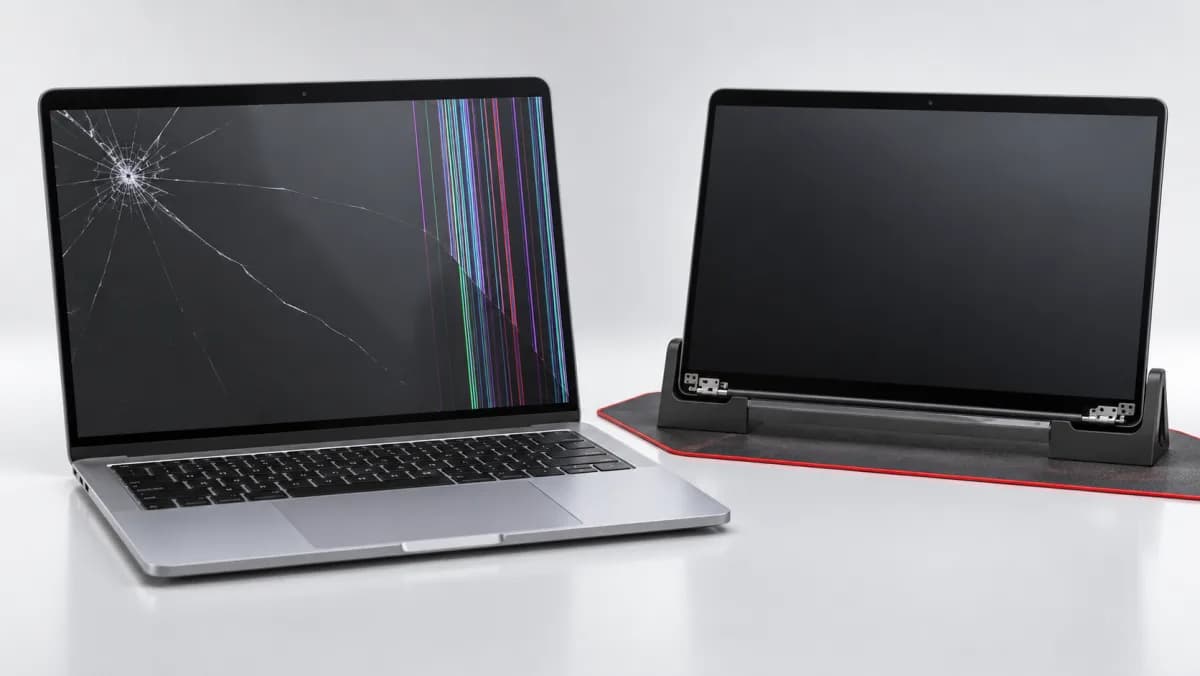
- ✓ Cracks on screen or casing
- ✓ Dents or impact marks on corners/edges
- ✓ Bent or damaged charging port
- ✓ Loose or broken hinges
- ✓ Missing screws or rubber feet
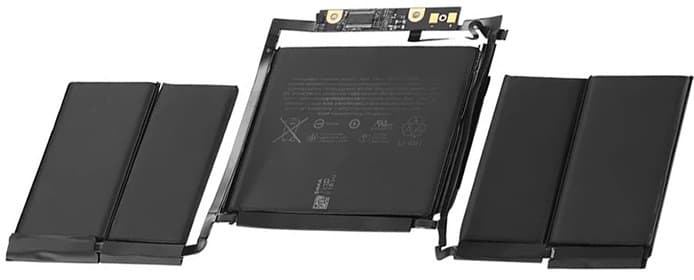
- ✓ Warped or bulging bottom panel (battery swelling warning!)
Inspect Ports and Connections:
- ✓ USB ports – debris, bent pins, corrosion
- ✓ HDMI/DisplayPort – pin alignment
- ✓ Audio jack – lint or pocket debris
- ✓ Charging port – wiggle/looseness
- ✓ SD card slot – obstruction
Check Ventilation System:
- ✓ Dust buildup in vents (common in Malaysia's climate)
- ✓ Blocked exhaust ports
- ✓ Fan noise when powered on
- ✓ Hot air flow from vents
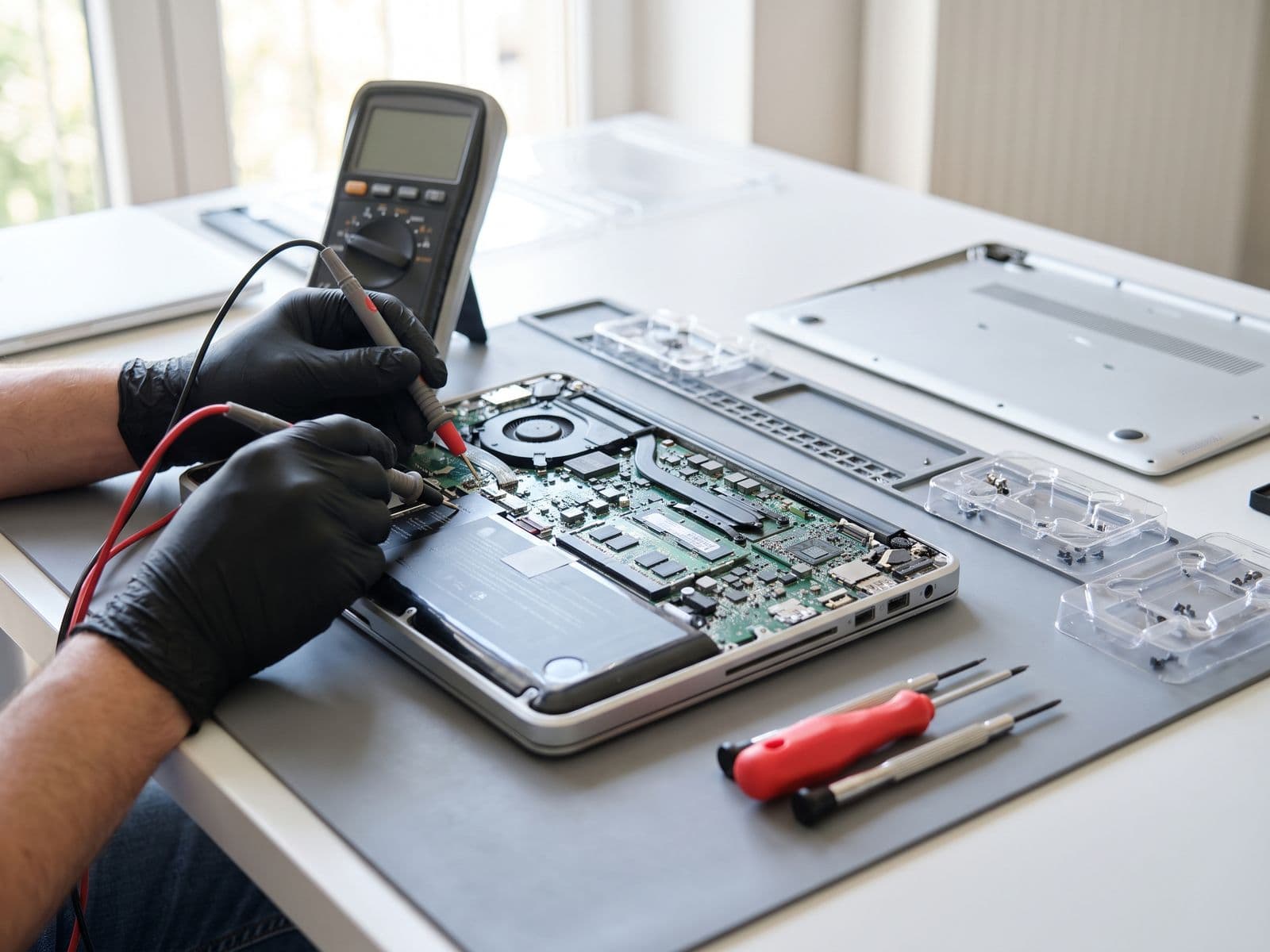
Internal Inspection (If Comfortable Opening)
WARNING: Only proceed if you're comfortable and warranty allows.
What to Look For:
- RAM modules properly seated
- Hard drive/SSD connections secure
- No liquid damage indicators (white stickers turned red/pink)
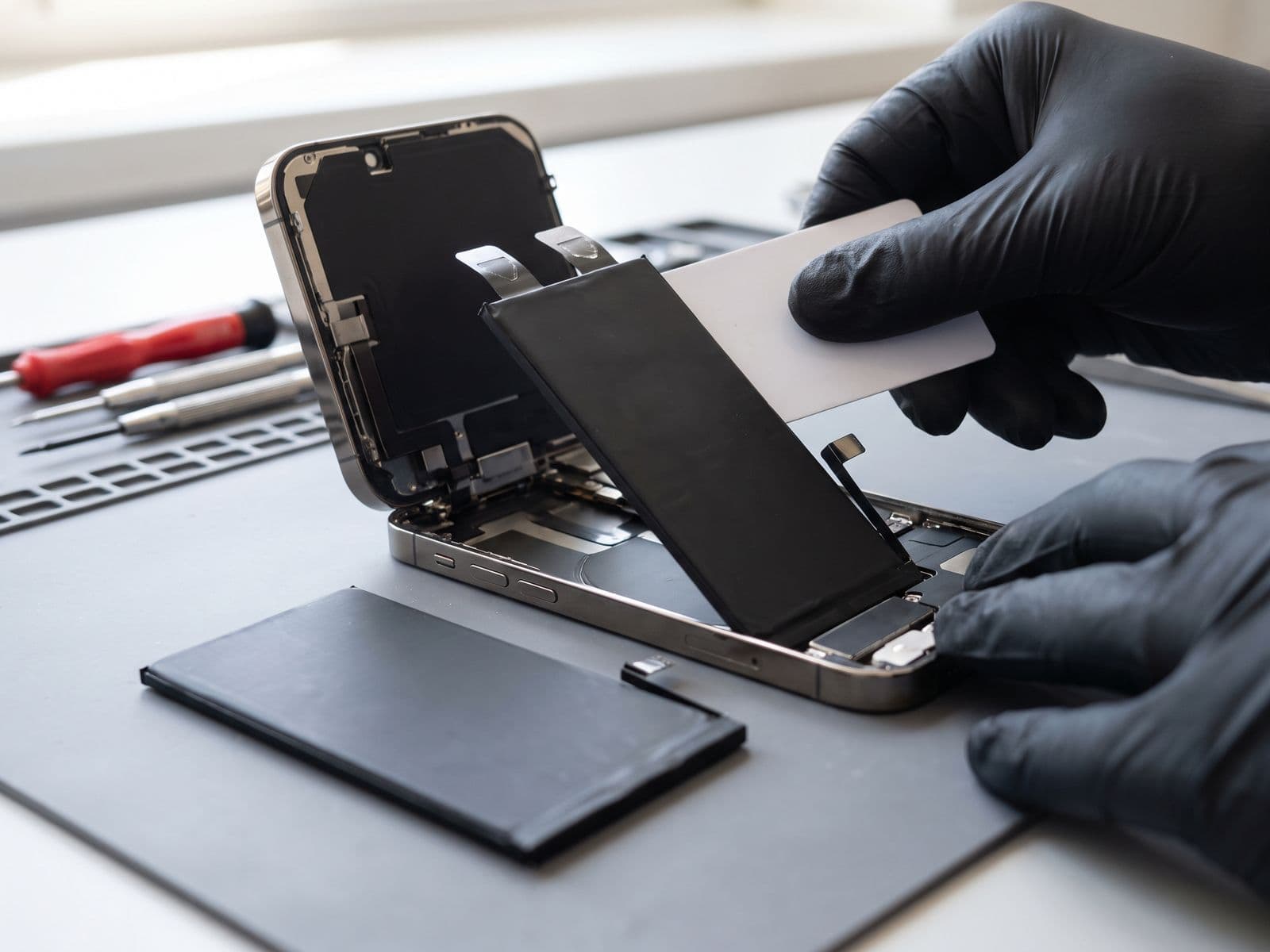
- Battery condition (no swelling or damage)
- Dust accumulation on fans and heatsinks
Common Symptoms Decoder (Problem Identification)
Match your symptoms to potential causes:
Display Issues
Black Screen / No Display
Symptoms:
- Laptop powers on (lights/sounds) but screen stays black
- Backlight visible (faint image in bright light)
- External monitor works fine
Possible Causes:
- Broken LCD panel
- Loose display cable connection
- Failed backlight inverter
- Graphics card failure
Repairs are quoted after diagnosis, and no work starts until you approve the quote.
Quick Test:
- Connect external monitor (if works, likely LCD/cable issue)
- Shine flashlight on screen (if you see faint image, backlight issue)
- Press Fn + F4/F5 (display toggle, might be on external mode)
Flickering Display
Symptoms:
- Screen flashes or flickers during use
- Colors appear distorted or incorrect
- Lines appear horizontally or vertically
Possible Causes:
- Loose display cable (common from hinge wear)
- Dying LCD panel
- Graphics driver corruption
- Overheating GPU
Quick Test:
- Update graphics drivers
- Open/close lid slowly (if flicker changes, cable issue)
- Run in Safe Mode (if stable, driver/software issue)
Performance Issues
Extremely Slow Performance
Symptoms:
- Takes 5+ minutes to boot
- Programs freeze or hang constantly
- Mouse cursor stutters
- Simple tasks like browsing lag
Possible Causes:
- Hard drive failure (mechanical HDD)
- Insufficient RAM for current usage
- Malware/virus infection
- Too many startup programs
- Thermal throttling from overheating
Quick Test:
- Check Task Manager CPU/RAM usage (Ctrl+Shift+Esc)
- Listen for clicking sounds (failing hard drive)
- Check temps with HWMonitor software
- Boot in Safe Mode (if faster, software issue)
Unexpected Shutdowns
Symptoms:
- Laptop turns off without warning
- Shuts down during specific tasks (gaming, video editing)
- Powers off when moved or tilted
Possible Causes:
- Overheating (thermal shutdown protection)
- Failing battery or power adapter
- Loose internal connection
- RAM failure
- Power supply issues
Quick Test:
- Check if shutdowns happen during intensive tasks (overheating)
- Use on AC power only (if stable, battery issue)
- Monitor temperatures before shutdown
- Check Event Viewer for critical errors (explained below)
Battery & Charging Problems
Not Charging / Battery Issues
Symptoms:
- Plugged in, says "Not Charging"
- Battery drains rapidly (2-3 hours instead of 6-8)
- Laptop won't turn on without charger
- Battery percentage jumps erratically
Possible Causes:
- Dead/worn battery (2-3 year lifespan)
- Faulty power adapter
- Broken DC jack (charging port)
- Battery driver corruption
Quick Test:
- Check battery health (instructions below)
- Try different power outlet/adapter
- Wiggle charging plug (if lights flicker, port issue)
- Remove battery, run on AC only (if works, battery dead)
Audio & Connectivity Issues
No Sound / Distorted Audio
Symptoms:
- No sound from speakers
- Audio crackles or pops
- Headphones work but speakers don't
- Sound cuts in and out
Possible Causes:
- Disabled audio device in settings
- Corrupted audio drivers
- Failed speaker hardware
- Loose internal connection
Quick Test:
- Right-click speaker icon → check mute/volume
- Device Manager → update audio drivers
- Test with headphones (if works, speaker failure)
- Boot into BIOS (if you hear beep, hardware works)
Wi-Fi Not Working
Symptoms:
- Can't detect any networks
- Connected but no internet
- Frequently disconnects
- Slow speeds
Possible Causes:
- Disabled Wi-Fi adapter
- Corrupted network drivers
- Router issues
- Failed Wi-Fi card
Quick Test:
- Toggle airplane mode off
- Network adapter properties → update drivers
- Other devices work on same network? (router issue)
- Ethernet connection works? (Wi-Fi hardware issue)
Built-in Diagnostic Tools (Windows)
Use these professional tools before visiting a repair shop:
Windows Event Viewer (Error Log Analysis)
How to Access:
- Press Win + X, select Event Viewer
- Navigate to Windows Logs → System
- Look for Error and Critical entries
What to Look For:
- Red error icons (critical failures)
- Timestamps matching your problem occurrences
- Repeated error codes
- Hardware-related errors (Disk, WHEA, Kernel-Power)
Common Error Codes:
- Event ID 41 (Kernel-Power): Unexpected shutdown → overheating or power issue
- Event ID 7 (Disk): Bad blocks → failing hard drive
- Event ID 18 (WHEA-Logger): Hardware error → CPU/RAM/motherboard issue
Task Manager (Performance Monitoring)
How to Access: Press Ctrl + Shift + Esc
Performance Tab Analysis:
CPU Usage:
- Normal idle: 5-15%
- Normal browsing: 15-40%
- High idle (60%+): Malware or background process issue
Memory (RAM) Usage:
- 50-70% usage: Normal
- 90%+ constantly: Need more RAM or memory leak
Disk Usage:
- Should be 0-10% when idle
- 100% constantly: Failing hard drive or malware
Startup Tab:
- Disable unnecessary startup programs
- High impact items slow boot significantly
Windows Memory Diagnostic (RAM Testing)
How to Run:
- Search Windows Memory Diagnostic in Start Menu
- Select Restart now and check for problems
- Laptop reboots and runs test (10-20 minutes)
- Results show after restart
Interpreting Results:
- No errors detected: RAM is fine
- Errors found: RAM replacement needed (quoted after diagnosis)
CHKDSK (Hard Drive Health Check)
How to Run:
- Open Command Prompt as Administrator
- Type: chkdsk C: /f /r
- Press Enter, type Y to schedule on restart
- Restart laptop (scan takes 1-3 hours)
What It Checks:
- Bad sectors on hard drive
- File system errors
- Disk surface integrity
Interpreting Results:
- "Windows has made corrections" → Minor issues fixed
- "Windows found errors but couldn't fix" → Hard drive failure imminent
- Multiple bad sectors → Replace hard drive immediately
Resource Monitor (Advanced Performance Analysis)
How to Access:
- Press Win + R, type resmon, press Enter
What to Monitor:
CPU Tab:
- Identify programs using excessive CPU
- Check for "System Interrupts" (should be <5%)
Memory Tab:
- See which programs use most RAM
- Hard Faults/sec (high number = slow hard drive)
Disk Tab:
- Identify programs causing disk activity
- Response time (>20ms = slow drive)
Built-in Diagnostic Tools (macOS)
For MacBook users:
Apple Diagnostics
How to Run:
- Shut down MacBook completely
- Turn on and immediately hold D key key
- Release when you see language selection
- Select language and run diagnostics (3-5 minutes)
Reference Codes:
- ADP000: No issues found
- PPF001-PPF007: Battery issue
- VFD001-VFD007: Display issue
- PFM001-PFM009: Fan issue
Activity Monitor
How to Access: Applications → Utilities → Activity Monitor
What to Check:
- CPU tab: High CPU usage programs
- Memory tab: Memory pressure (green = good, red = need more RAM)
- Energy tab: Apps draining battery
- Disk tab: Read/write activity
Free Third-Party Diagnostic Software
These tools provide more detailed information:
CrystalDiskInfo (Hard Drive Health)
Download: crystalmark.info
What It Shows:
- S.M.A.R.T. status (Good, Caution, Bad)
- Temperature (should be <50°C)
- Power-on hours (drive lifespan indicator)
- Reallocated sector count (bad sectors)
Health Status Meanings:
- Good: Drive is healthy
- Caution: Issues detected, backup immediately
- Bad: Drive failure imminent, replace ASAP
HWMonitor (Temperature Monitoring)
Download: cpuid.com/softwares/hwmonitor
Critical Temperature Thresholds:
- CPU: Safe <80°C, Warning 80-95°C, Critical >95°C
- GPU: Safe <85°C, Warning 85-95°C, Critical >95°C
- Hard Drive: Safe <50°C, Warning >50°C
If Overheating:
- Clean vents and fans (professional service, quoted after diagnosis)
- Replace thermal paste (quoted after diagnosis)
- Use a cooling pad
Malwarebytes (Malware Detection)
Download: malwarebytes.com
When to Use:
- Slow performance
- Pop-ups and ads
- Homepage changed without permission
- Programs installing without consent
Scan Process:
- Download and install free version
- Update definitions
- Run full system scan (30-60 minutes)
- Quarantine detected threats
- Restart computer
When to Backup Data Before Repair
ALWAYS backup before repair if experiencing:
- Hard drive errors or bad sectors
- Frequent crashes or blue screens
- Physical damage (especially water damage)
- Any symptoms suggesting hard drive failure
- Laptop won't boot into Windows
Quick Backup Methods:
For Windows:
- External hard drive: Copy important folders
- Cloud: OneDrive, Google Drive, Dropbox
- System Image: Control Panel → Backup and Restore
For macOS:
- Time Machine to external drive
- iCloud backup
- Manual copy to external storage
What to Backup:
- Documents, photos, videos
- Browser bookmarks and passwords
- Email (if using desktop client)
- Software license keys
- Desktop files
Questions to Ask Your Repair Shop
Armed with diagnostic information, ask these questions:
Before Service:
- "Is there a diagnostic fee, and is it waived if I go ahead?" (TechFix's RM100–150 diagnostic fee is waived when you approve the repair)
- "What diagnostic tools will you use?"
- "How long will diagnosis take?"
- "Will you call for approval before repairs?"
- "What's included in your warranty?"
During Quote:
- "What specifically is causing the problem?"
- "Why do you recommend this repair?" (avoid unnecessary work)
- "Can I see the faulty part?" (transparency check)
- "Are there alternative solutions?" (cheaper options)
- "What happens if problem persists after repair?"
Red Flags (Avoid These Shops):
- Won't explain the problem clearly
- Pressure immediate repairs without explanation
- Can't provide parts warranty
- No written quote or receipt
- Require payment before diagnosis
- Recommend replacing entire laptop without justification
Information Technicians Need
Provide this information for efficient service:
Essential Details:
- Laptop brand and model (check bottom sticker)
- Operating system (Windows 10/11, macOS version)
- When problem started (sudden or gradual)
- What you were doing when issue occurred
- Any recent changes (software installation, Windows update, drop/spill)
- Error messages or codes (take photos)
- What you've already tried
Diagnostic Results to Share:
- Event Viewer error codes
- CHKDSK results
- Temperature readings
- Battery health report
- Any diagnostic software results
DIY Risks: When NOT to Attempt Repair
Never Attempt DIY If:
- Laptop still under warranty (voids warranty)
- Uncomfortable opening laptop
- Requires soldering (motherboard repairs)
- Liquid damage present (corrosion spreads)
- You lack proper tools
- Screen/hinge replacement needed
Common DIY Disasters We Fix:
- Stripped screws from wrong screwdriver
- Broken display connectors
- Static electricity damage to components
- Incorrect RAM/SSD installation
- Lost screws/brackets
- Worsened liquid damage from cleaning attempts
Safe DIY Repairs:
- Software reinstallation
- Virus removal with reputable software
- External cleaning (vents, keyboard)
- Adding external storage
- USB peripheral troubleshooting
If your diagnostics point to a hardware issue, our laptop repair team can handle everything from screen replacements to motherboard repairs. For Apple users, our MacBook repair specialists offer expert diagnostics for all Mac models.
Book Professional Diagnosis at TechFix Malaysia
After your pre-diagnosis, if you need professional help, TechFix Malaysia offers:
Professional Diagnostics:
- Diagnostic fee (RM100–150) waived when you approve the repair
- Advanced diagnostic tools and software
- Clear explanation of problems and solutions
- Transparent pricing before any work
Why Choose TechFix:
- Honest assessment (we tell you if repair isn't worth it)
- Written quotes with detailed breakdowns
- 90-Day Warranty on all repairs
- Same-day service for most issues
Our Locations:
📍 Sunway Geo Avenue G-06-28, Level 6, Block G Jalan Lagoon Selatan, Sunway South Quay 47500 Subang Jaya, Selangor
📍 Klang Valley and elsewhere Courier your device to us and we courier it back free. WhatsApp us first to confirm timing.
Contact Us:
- Online booking: techfix.my/booking
- WhatsApp: 012-770 7120
- Call: 017-355 5725
- E-mel: fix@techfix.my
- Hours: Mon-Fri 9am - 6pm (closed Sat & Sun)
Frequently Asked Questions
Q: How can I tell if my laptop problem is hardware or software? A: Boot into Safe Mode (press F8 during startup on Windows). If the problem disappears in Safe Mode, it's likely software-related (drivers, malware, or conflicting programs). If the problem persists in Safe Mode, it's likely hardware. Also, physical symptoms like strange noises, no power, or visible damage always indicate hardware issues.
Q: What diagnostic tools should I run before visiting a repair shop? A: Run these four diagnostics: 1) Windows Event Viewer to check for error logs, 2) CHKDSK to test hard drive health, 3) Windows Memory Diagnostic to test RAM, and 4) HWMonitor to check temperatures. Download CrystalDiskInfo to check hard drive S.M.A.R.T. status. These tests take 1-2 hours total but provide valuable information.
Q: Should I backup my data before getting a laptop repaired? A: Yes, always backup before any repair, especially for: hard drive issues, frequent crashes, blue screens, water damage, or boot failures. While reputable shops like TechFix take precautions, data loss can occur during hardware failure. Use external drives, cloud storage, or system image backups.
Q: How do I check my laptop's battery health? A: For Windows: Open Command Prompt as Administrator and type "powercfg /batteryreport". Open the generated HTML file to see battery health, capacity, and cycle count. For macOS: Hold Option key, click Apple menu → System Information → Power. Check "Cycle Count" and "Condition". Batteries typically last 300-500 cycles or 2-3 years.
Q: What information should I give the repair technician? A: Provide: 1) Laptop brand and exact model, 2) When the problem started and how often it occurs, 3) What you were doing when it happened, 4) Any error messages (take photos), 5) Recent changes (updates, new software, drops/spills), 6) Results from any diagnostic tests you ran, 7) Whether data backup is needed.
Q: Does TechFix charge for diagnostics? A: At TechFix, the diagnostic fee (RM100 for Windows laptops and desktops, RM150 for Apple, Surface, Alienware, AfterShock, consoles and drones) is waived in full when you approve the repair quote. If you decline the repair, the fee applies, and if we can't fix it you pay nothing. We believe in transparent service – you should know what's wrong and how much repairs cost before committing. Always ask any shop upfront about diagnostic fees.
Q: How can I avoid being scammed by repair shops? A: Red flags include: refusing to explain the problem clearly, pressuring immediate repairs, not providing written quotes, requiring full payment upfront, recommending laptop replacement without justification, or not offering warranty. Trustworthy shops like TechFix provide detailed explanations, written quotes, parts warranty, and only recommend repairs when cost-effective.
Q: When should I replace my laptop instead of repairing it? A: Consider replacement if: 1) Repair costs exceed 50% of laptop's current value, 2) Laptop is 5+ years old with multiple failing components, 3) Motherboard replacement needed, 4) Performance no longer meets your needs even after repair. We'll honestly advise when replacement makes more financial sense.