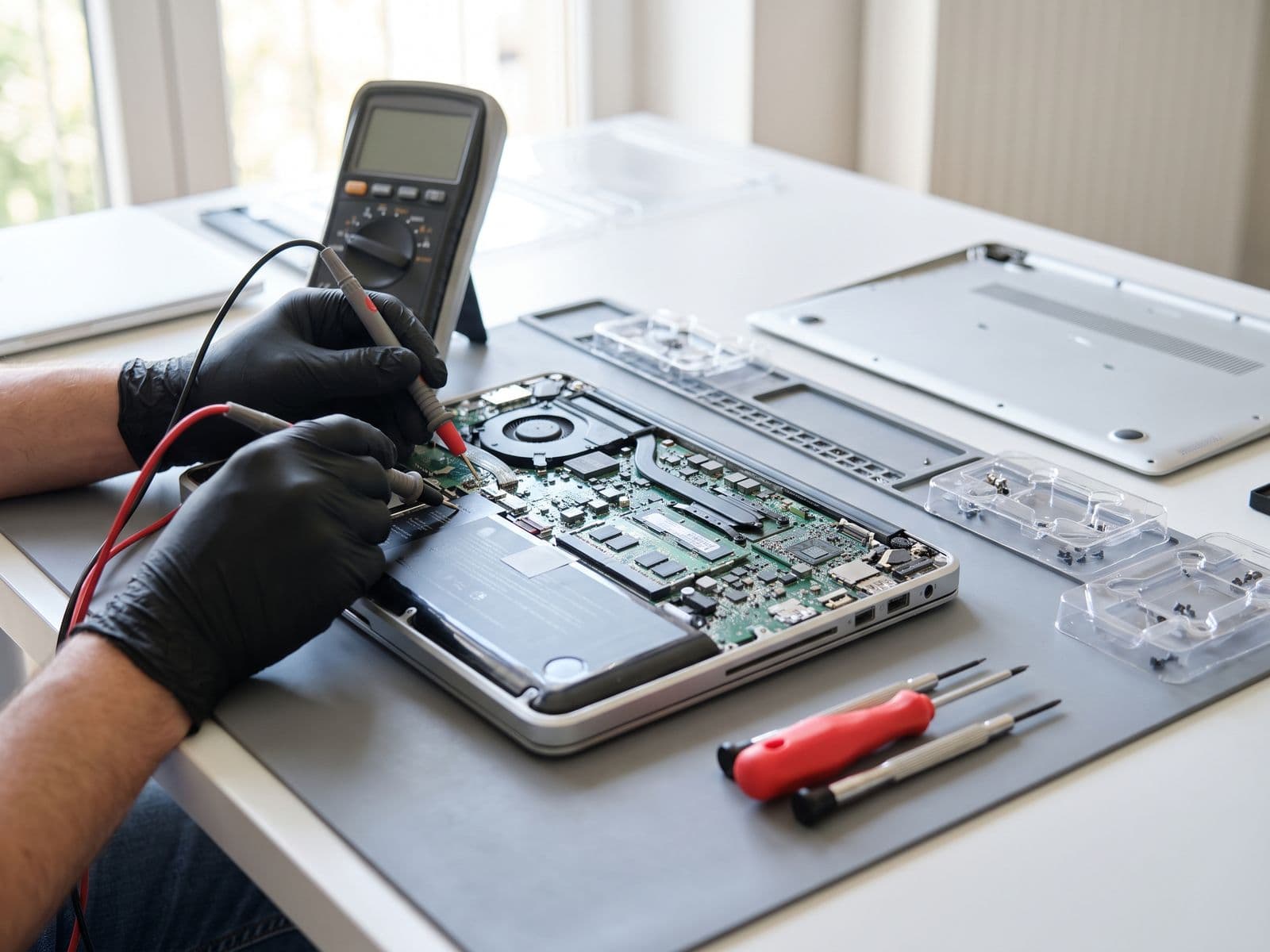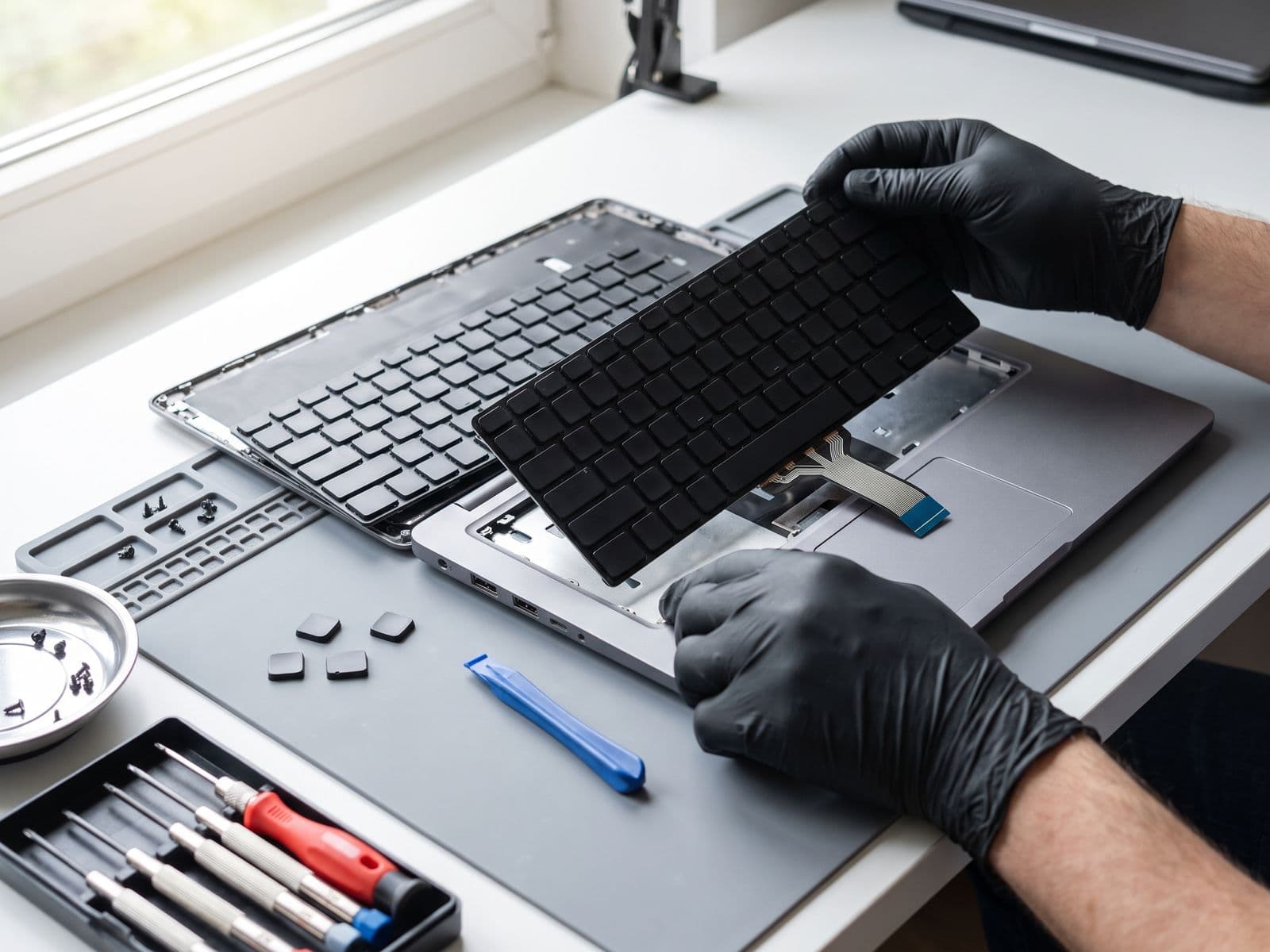

Try these fixes first. If they don't work, we can fix it. Covers MacBook, Windows laptops, and Surface devices — most keyboard problems have a free fix.
When Your Keyboard Stops Responding
You're in the middle of work, typing an important email, and suddenly half your keys stop working. Or maybe one key types multiple letters. Perhaps nothing responds at all.
Keyboard failures are among the most frustrating laptop problems because they immediately halt productivity. The good news? Many keyboard issues have simple fixes you can try before booking professional repair.
This guide covers troubleshooting for MacBook, Windows laptops, and Microsoft Surface devices, based on the keyboard repairs we handle at TechFix Malaysia.
Quick Diagnostic: Hardware vs. Software Issues
Before diving into fixes, determine if your problem is hardware or software related:
Software-Related Symptoms
- Keyboard works intermittently
- Works in BIOS/boot menu but not in Windows/macOS
- Certain keys work in some programs but not others
- On-screen keyboard works fine
- External keyboard works perfectly
- Problem started after software update
Likely cause: Driver issues, settings changes, software conflicts
Hardware-Related Symptoms
- Physical damage visible (spill, broken keys)
- Specific keys never work in any situation
- Keys feel mushy or stick down
- Multiple adjacent keys failed simultaneously
- Keyboard doesn't work even in BIOS
- External keyboard has same issues (suggests motherboard problem)
Likely cause: Physical damage, connection issues, component failure
MacBook Keyboard Troubleshooting
MacBook Butterfly Keyboard Issues (2015-2019 Models)
Apple's butterfly keyboard mechanism is notoriously problematic. If you have a MacBook from 2015-2019, you may qualify for Apple's keyboard service program.
Affected models:
- MacBook (Retina, 12-inch, Early 2015-2017)
- MacBook Air (Retina, 13-inch, 2018-2019)
- MacBook Pro (13-inch, 2016-2020 except M1)
- MacBook Pro (15-inch, 2016-2019)
Common butterfly keyboard problems:
- Letters or characters repeat unexpectedly
- Letters don't appear
- Key feels "sticky" or doesn't respond consistently
Fix 1: Compressed Air Cleaning (Apple's Official Method)
Apple recommends this for butterfly keyboards:
- Hold MacBook at 75-degree angle (not flat)
- Use compressed air to spray keyboard in left-to-right motion
- Rotate MacBook to right side, spray left-to-right again
- Repeat for all four sides
- Focus on problem keys with short bursts
Why it works: Dust particles under butterfly mechanism prevent proper key registration. Compressed air can dislodge debris.
Success rate: ~30% for minor issues, 0% for liquid damage or mechanical failure.
Fix 2: Reset SMC (System Management Controller)
The SMC controls keyboard functionality among other hardware functions.
For MacBooks with T2 chip (2018-2020):
- Shut down MacBook completely
- Press and hold power button for 10 seconds
- Release, wait 5 seconds
- Press power button normally to start
For older MacBooks:
- Shut down MacBook
- Press Shift + Control + Option (left side) + Power button simultaneously
- Hold 10 seconds
- Release all keys, power on normally
Why it works: Resets hardware controllers that may be mismanaging keyboard input.
Success rate: ~15% for intermittent issues.
Fix 3: Reset NVRAM/PRAM
NVRAM stores keyboard layout and input settings.
- Shut down MacBook
- Power on and immediately press and hold: Option + Command + P + R
- Hold for about 20 seconds (you'll hear startup chime twice on older models)
- Release keys and let MacBook boot normally
Why it works: Clears corrupt keyboard configuration settings.
Success rate: ~10% for software-related issues.
Fix 4: Check Keyboard Settings
System Preferences issues to verify:
- Go to System Preferences > Keyboard
- Check "Key Repeat" isn't set to Off
- Verify "Delay Until Repeat" isn't at maximum
- Click "Modifier Keys" and ensure nothing is set to "No Action"
- Check "Input Sources" shows correct keyboard layout
Accessibility settings to check:
- System Preferences > Accessibility > Keyboard
- Ensure "Slow Keys" is OFF (causes delayed key response)
- Ensure "Sticky Keys" is OFF unless you need it
- Check "Enable Mouse Keys" is OFF (can interfere with keyboard)
When MacBook Keyboard Needs Professional Repair
You need professional service if:
- Compressed air doesn't resolve issue after 2-3 attempts
- Multiple keys across different keyboard areas aren't working
- Keys are physically damaged or missing
- Liquid was spilled (even if dried)
- Keyboard worked then failed after heat exposure
- You have a 2016-2019 MacBook Pro with persistent issues
Professional repair options:
- MacBook keyboard replacement (MacBook Air Butterfly 2018-2019: RM 480; other models: quote after diagnosis)
- Butterfly keyboard conversion to Magic Keyboard (2020+ mechanism)
- Individual key cap replacement (quote after diagnosis)
Windows Laptop Keyboard Troubleshooting
Fix 1: Restart Explorer.exe (Temporary Software Glitch)
Sometimes Windows Explorer conflicts affect keyboard input.
- Press Ctrl + Shift + Esc (opens Task Manager)
- Find "Windows Explorer" in process list
- Right-click and select "Restart"
- Test keyboard after Explorer reloads
Why it works: Refreshes Windows shell that handles input devices.
Success rate: ~20% for sudden keyboard failure without clear cause.
Fix 2: Update or Rollback Keyboard Drivers
To update drivers:
- Press Windows + X, select "Device Manager"
- Expand "Keyboards"
- Right-click your keyboard device
- Select "Update driver" > "Search automatically"
- Restart laptop after installation
To rollback drivers (if problem started after update):
- Device Manager > Keyboards > Right-click keyboard
- Properties > Driver tab > "Roll Back Driver"
- Follow prompts and restart
Why it works: Corrupted or incompatible drivers cause input failures.
Success rate: ~25% for issues that started after Windows updates.
Fix 3: Run Hardware Troubleshooter
Windows 10/11 includes built-in diagnostic tools.
- Settings > Update & Security > Troubleshoot
- Select "Additional troubleshooters"
- Click "Keyboard" > "Run the troubleshooter"
- Follow on-screen instructions
- Restart if prompted
Why it works: Automatically detects and fixes common configuration issues.
Success rate: ~15% for software misconfigurations.
Fix 4: Check for Stuck Filter Keys
Filter Keys can make keyboard appear non-responsive.
- Settings > Ease of Access > Keyboard
- Ensure "Use Filter Keys" is OFF
- Ensure "Use Sticky Keys" is OFF
- Ensure "Use Toggle Keys" is OFF
Alternative method:
- Tap Shift key 5 times rapidly
- If a dialog appears, click "No" to disable Filter Keys
Why it works: These accessibility features alter keyboard behavior in ways that seem like malfunction.
Success rate: ~10% but quick to check.
Fix 5: Boot in Safe Mode Test
Safe mode loads minimal drivers, helping identify if third-party software is interfering.
- Settings > Update & Security > Recovery
- Under "Advanced startup" click "Restart now"
- After restart: Troubleshoot > Advanced options > Startup Settings > Restart
- Press 4 or F4 for Safe Mode
- Test keyboard in Safe Mode
If keyboard works in Safe Mode:
- Problem is software-related (driver conflict, malware, startup program)
- Uninstall recently added programs
- Run antivirus scan
- Perform clean boot to isolate culprit
If keyboard doesn't work in Safe Mode:
- Problem is hardware-related
- Proceed to professional diagnosis
Microsoft Surface Keyboard Troubleshooting
Surface devices have unique keyboard designs requiring specific approaches.
Surface Type Cover Issues
For detachable Type Covers:
- Completely detach Type Cover
- Clean magnetic connectors with microfiber cloth
- Restart Surface
- Reattach Type Cover firmly (should click into place)
- Wait 10 seconds for driver recognition
If still not working:
- Try Type Cover on another Surface (tests if cover is faulty)
- Try different Type Cover on your Surface (tests if connector is faulty)
Surface Laptop/Book Built-in Keyboard
Fix 1: Two-Button Restart (Surface-specific reset)
- Press and hold Power button for 30 seconds
- Release power button
- Press and hold Volume Up + Power button simultaneously for 15 seconds
- Release both buttons
- Wait 10 seconds, then press Power normally to start
Why it works: Forces complete hardware reset including keyboard controller.
Success rate: ~30% for intermittent Surface keyboard issues.
Fix 2: Update Surface Firmware
Surface-specific firmware updates often fix keyboard issues.
- Ensure Surface is plugged in and connected to internet
- Settings > Update & Security > Windows Update
- Click "Check for updates"
- Install all Surface firmware updates
- Restart when prompted
Why it works: Microsoft releases keyboard-specific firmware fixes for known Surface issues.
Success rate: ~20% especially for recently reported widespread issues.
Universal Keyboard Cleaning (Physical Maintenance)
Supplies Needed
- Compressed air canister
- Isopropyl alcohol (90% or higher)
- Cotton swabs
- Microfiber cloth
- Keycap puller (optional, for mechanical keyboards)
Cleaning Steps
For membrane keyboards (most laptops):
- Power off laptop completely
- Hold at 75-degree angle
- Spray compressed air between keys (left to right pattern)
- Rotate and repeat for all angles
- Dampen cotton swab with isopropyl alcohol
- Clean around keycaps gently
- Wipe entire keyboard with lightly dampened microfiber cloth
- Let air dry 10 minutes before powering on
NEVER DO THIS:
- Don't use household cleaners (leave residue)
- Don't pour liquid directly on keyboard
- Don't use vacuum cleaners (can create static discharge)
- Don't remove keycaps unless you're experienced (easy to break clips)
When DIY Won't Work: Signs You Need Professional Repair
| Symptom | DIY Potential | Professional Needed |
|---|---|---|
| Single key intermittently not working | ⭐⭐⭐ Try cleaning | If persists after cleaning |
| Multiple random keys not working | ⭐⭐ Try driver update | If not software-related |
| Entire keyboard not responding | ⭐⭐ Try resets | If external keyboard also fails |
| Keys physically broken/missing | ❌ No DIY option | Immediate replacement needed |
| Liquid spill (even if dried) | ⭐ Try rice myth (doesn't work) | Immediate professional cleaning |
| Keys typing wrong characters | ⭐⭐ Try keyboard layout setting | If setting is correct |
| Keyboard works in BIOS only | ⭐⭐ Try driver reinstall | If persists |
| Sticky keys after spill | ❌ Cleaning makes worse | Professional disassembly needed |
Liquid Spill on Keyboard: Immediate Actions
If you just spilled liquid:
- Immediately power off (don't shut down gracefully, hold power button)
- Disconnect from power and remove battery (if removable)
- Flip laptop upside down in tent position (so liquid drains away from motherboard)
- Wipe visible liquid with absorbent cloth
- Leave in tent position for 48 hours minimum
- DO NOT use rice (doesn't work, leaves debris)
- DO NOT use hair dryer (pushes liquid deeper into components)
After 48 hours:
❌ Don't just power on and hope
✅ Bring to professional for cleaning:
- Disassembly and inspection
- Ultrasonic cleaning of keyboard assembly
- Corrosion treatment
- Component-level testing
Why professional cleaning matters:
Even if keyboard seems to work after drying, sugar/minerals from drinks cause corrosion over days/weeks. This leads to:
- Gradual key failures
- Trackpad issues
- Motherboard short circuits (can total the laptop)
Cost comparison:
- Immediate professional cleaning and assessment: from RM 249
- Delayed corrosion damage (component or board repair): quote after diagnosis
See our water damage recovery service for liquid spill professional treatment.
Hardware vs. Software: Final Decision Tree
Use this flowchart logic:
-
Does external USB keyboard work perfectly?
- YES → Software or ribbon cable issue → Try driver fixes
- NO → Motherboard or system issue → Professional diagnosis needed
-
Does keyboard work in BIOS/boot menu?
- YES → Operating system issue → Try driver/OS fixes
- NO → Hardware failure → Professional replacement needed
-
Did issue start after software update/installation?
- YES → Software conflict → Try rollback/uninstall
- NO → Likely hardware → Professional diagnosis
-
Was there physical damage or liquid exposure?
- YES → Hardware damage → Professional repair mandatory
- NO → Continue troubleshooting
-
Do all software fixes fail?
- YES → Hardware confirmed → Professional replacement needed
- NO → Keep trying software solutions
Keyboard Replacement Costs in Malaysia (2026)
| Device Type | Keyboard Type | Typical Cost | Repair Time |
|---|---|---|---|
| MacBook Air (M1-M3) | Top case assembly | Quote after diagnosis | 2-3 days |
| MacBook Pro 13" (2016-2020) | Butterfly keyboard | Quote after diagnosis | 2-4 days |
| MacBook Pro 14"/16" (M1-M3) | Magic Keyboard | Quote after diagnosis | 3-5 days |
| Dell XPS 13/15 | Backlit membrane | RM 199 | 1-2 days |
| HP Pavilion/ProBook | Standard membrane | RM 179 | 1-2 days |
| Lenovo ThinkPad | Keyboard assembly | RM 199 | 1-2 days |
| ASUS ZenBook | Backlit chiclet | RM 199 | 1-2 days |
| Surface Laptop 3 / 4 | Integrated keyboard | RM 699-799 | 3-5 days |
| Gaming laptops (backlit RGB) | Mechanical/membrane | RM 299-799 | 2-3 days |
What's included:
- Labor for disassembly/reassembly
- Keyboard assembly (key caps, membrane, backlight)
- Testing and quality check
- 90-day warranty
Not included:
- Damage to other components (motherboard, trackpad)
- Backup transfer assessment if needed
- Liquid damage cleaning (separate service)
View detailed pricing for your specific model: MacBook keyboard replacement | Laptop keyboard replacement
Frequently Asked Questions
Can I replace just one keycap instead of the whole keyboard? Sometimes. For mechanical keyboards, often yes. For membrane keyboards like MacBooks, individual keycaps may be available but availability varies by model. Individual key repair is quote after diagnosis.
Why does my keyboard type multiple letters for one key press? "Key chattering" is caused by worn switch contacts (hardware) or driver issues (software). Try driver update first. If persists, needs keyboard replacement.
My laptop keyboard works but the backlight doesn't. Is this expensive to fix? Often it's just the backlight cable or LED strip, not the whole keyboard. Professional diagnosis can save money (a small repair vs. a full keyboard replacement).
After spilling water, keyboard works but some keys feel sticky. Is it okay to keep using? No. Stickiness indicates residue that will corrode contacts. Get professional cleaning now before corrosion spreads to motherboard.
Can I use an external keyboard forever instead of fixing the built-in one? Yes, but it's inconvenient and reduces laptop resale value by 20-30%. Also, if the ribbon cable is loose, it might affect other components.
How long does keyboard replacement take? Most laptop keyboards: 1-2 days. MacBooks: 2-4 days (more complex disassembly). Rush service available for urgent cases.
Get Professional Keyboard Diagnosis in Malaysia
Tried the troubleshooting steps without success? Our technicians can diagnose keyboard issues in 30 minutes and provide transparent repair options.
Keyboard diagnosis includes:
- Hardware component testing
- Software driver verification
- Liquid damage inspection
- Ribbon cable connection check
- Quote for repair with multiple options
Visit TechFix Malaysia:
Sunway Geo Avenue (Bandar Sunway, Subang Jaya) G-06-28, Level 6, Block G, Sunway Geo Avenue Jalan Lagoon Selatan, Bandar Sunway Open: Mon-Fri 9AM-6PM (closed Sat & Sun)
Elsewhere in Malaysia Courier your device to us and we courier it back free. WhatsApp us first to confirm timing.
WhatsApp us your keyboard issue: 012-770 7120
Book keyboard repair online with your device details. We'll have replacement parts ready when you arrive for same-day service on common models.