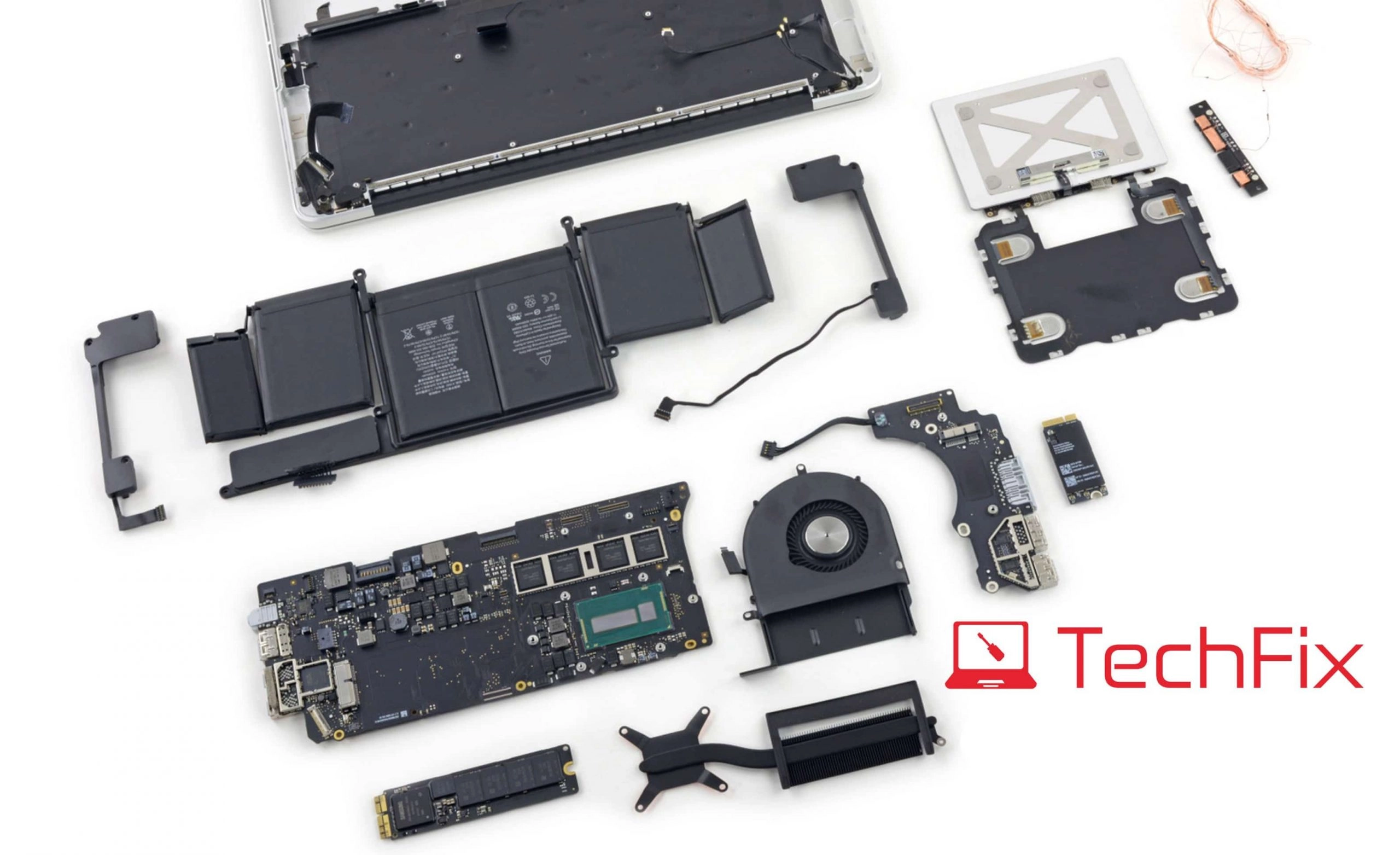
Diagnose common MacBook problems with our expert guide. From startup failures to battery drain — know when to DIY and when to get professional help.
Common MacBook Problems and How to Troubleshoot Them (2026 Guide)
MacBooks are among the most reliable laptops available, but they are not immune to problems. Whether you own a MacBook Air M2, a MacBook Pro 14" with M3, or an older Intel model, the same categories of issues tend to appear after years of use. This guide covers the most common MacBook problems, what causes them, what you can try yourself, and when a professional repair is the right call.
1. MacBook Won't Turn On
This is one of the most alarming situations, but it is often not as catastrophic as it seems.
What to try first
Step 1: Check the basics Connect the charger and wait at least 5 minutes before pressing the power button. A completely drained battery may need a few minutes to accumulate enough charge to power the startup sequence.
Step 2: Check the charger and cable MagSafe and USB-C cables fray with heavy use. Try a different cable or charger if available. On MagSafe models, look for the LED indicator — amber means charging, green means full, no light may mean a faulty cable or port.
Step 3: SMC Reset (Intel MacBooks only) Hold Shift + Control + Option on the left side of the keyboard, then press and hold the Power button simultaneously for 10 seconds. Release all keys, then press Power to start.
On M1/M2/M3 MacBooks, there is no SMC to reset — simply hold the power button for 10 seconds to force restart.
Step 4: NVRAM Reset (Intel MacBooks) Hold Option + Command + P + R immediately after pressing the power button. Hold for about 20 seconds through the startup chime.
When to seek professional help
If none of the above works, the issue is likely hardware — a failed charging port, dead logic board power circuit, or a completely depleted battery that cannot accept charge. Our MacBook repair Malaysia team offers expert diagnosis for no-power situations.
2. Slow MacBook Performance
A MacBook that felt fast two years ago and now crawls through basic tasks is a very common complaint, especially in Malaysia where machines work harder in the heat.
Software causes and fixes
Check storage space. macOS requires at least 10–15% of storage free to operate efficiently. Open System Settings > General > Storage to see your usage. If you are at 90%+ capacity, clear downloads, empty trash, and offload files to external storage or cloud.
Close background applications. Open Activity Monitor (search via Spotlight) and sort by CPU usage. Applications consuming 20%+ CPU when idle are worth closing or disabling at login.
Update macOS. Many performance improvements and bug fixes ship in system updates. Running an outdated version can mean missing critical optimisations for your chip.
Check Login Items. System Settings > General > Login Items. Remove anything you do not recognise or need at startup.
Hardware causes and fixes
Thermal throttling. If your MacBook is running hot — fan spinning loudly, bottom chassis warm to touch — the processor may be throttling its clock speed to manage temperature. This is especially common in Malaysia's climate when used on soft surfaces like beds or cushions that block the ventilation.
Use the MacBook on a hard, flat surface. Consider a stand with active airflow. If the fan is always loud even with light tasks, dust buildup in the cooling system may be the cause — a professional internal clean can make a significant difference.
Insufficient storage for the OS. If you cannot free up enough internal space, a MacBook SSD upgrade is worth considering. We upgrade MacBook SSDs from RM 550, and the speed difference on a cramped drive is immediately noticeable.
3. MacBook Battery Draining Too Fast
Malaysia's hot climate is hard on batteries. If your MacBook used to last 8 hours and now barely makes 3, here is where to look.
Check battery health first
Go to System Settings > Battery > Battery Health. If your maximum capacity has dropped below 80%, or macOS shows "Service Recommended," the battery cell itself is degraded and software optimisations will only provide marginal improvement.
Software optimisations that help
- Check Activity Monitor for apps consuming high energy. Sort by Energy Impact column.
- Reduce display brightness. The screen is the single biggest power draw. Dropping from 100% to 60% brightness can add 1–2 hours of runtime.
- Enable Low Power Mode for tasks that do not require full performance.
- Disable features you are not using: Bluetooth, AirDrop, and keyboard backlight all consume measurable power.
- Use Safari instead of Chrome. Safari is optimised for Apple Silicon and consumes significantly less battery on M-series MacBooks.
When to replace the battery
If battery health is below 80%, replacement is the most effective solution. TechFix replaces MacBook batteries from RM 299 (older models) to RM 650 (MacBook Pro 14"/16" M-series). Learn more at our MacBook battery replacement page.
4. MacBook Overheating
Excessive heat damages components over time and triggers performance throttling in the short term.
Common causes in Malaysia
- Soft surface use. Using a MacBook on a bed, sofa, or pillow blocks the bottom ventilation. Always use on a hard surface.
- Dust buildup. Over 2–3 years, dust accumulates on the internal cooling fins and fan blades, dramatically reducing heat dissipation. This is worse in Malaysian environments with high humidity and construction dust.
- Demanding tasks. Video editing, gaming, and large data processing are CPU/GPU intensive. Some heat is expected, but sustained temperatures above 90°C indicate a cooling problem.
- Degraded thermal paste. The thermal compound between the CPU and heatsink dries out over 3–5 years, reducing heat transfer efficiency.
DIY steps
- Ensure the MacBook is on a hard, flat surface with clear airflow.
- Check Activity Monitor for runaway processes consuming 100%+ CPU unexpectedly.
- Reboot — some background macOS processes (like Spotlight indexing after an update) temporarily drive high CPU usage.
- Update macOS — Apple patches thermal management issues in system updates.
Professional service
If cleaning and airflow adjustments do not help, internal cleaning and thermal paste replacement at TechFix restores proper temperatures. This service is especially effective on MacBooks 3+ years old that have never been opened.
5. MacBook Keyboard Problems
MacBook keyboards have a complicated history. The butterfly keyboard used from 2015 to 2019 was notorious for key failures from dust and debris. The scissor-switch Magic Keyboard introduced in 2020 is more reliable but not immune to issues.
Common keyboard problems
Sticky or unresponsive keys. Usually caused by debris under the keycaps. On butterfly keyboards, even a single grain of dust can prevent key actuation.
Repeating characters. A key registers multiple times from a single press — a sign of contact point degradation or a failing keyboard controller.
No backlight. The LED backlight has failed or the flex cable connecting the keyboard to the logic board is damaged.
Keys after liquid spill. Sticky residue from beverages (especially coffee and soft drinks) causes keys to stick or fail. Even a small spill that appears to dry without issue can leave conductive residue inside.
What to try
- Use compressed air at an angle to blow debris from under the affected keys.
- On butterfly keyboards, Apple offered a free Keyboard Service Program for qualifying models. Check Apple's website to see if your serial number qualifies — though this program has ended for most older models.
- If specific keys have failed after liquid contact, stop using the machine and have it cleaned professionally before corrosion spreads.
Professional repair
MacBook keyboard replacement is not a straightforward DIY job. The keyboard is integrated into the top case assembly, which means replacement involves removing the battery, logic board, and other components. TechFix handles keyboard replacements from RM 400, with same-day turnaround for most models.
6. MacBook Screen Issues
Screen problems range from minor (small dead pixel) to urgent (cracked display or flickering that makes the machine unusable).
Dead pixels or coloured dots that do not change indicate LCD panel damage. If you have fewer than 5 dead pixels in a non-critical area, you may choose to live with it. More than that, or a dead pixel in the centre of the screen, warrants replacement.
Flickering can indicate a failing display cable (common on 2016–2019 MacBook Pro models — the "Flexgate" issue) or a failing GPU.
Cracked glass or LCD damage requires a full display assembly replacement. Costs range from RM 450 (older MacBook Air without Retina) to RM 2,400 (MacBook Pro 16" with Liquid Retina XDR). See our full MacBook screen replacement pricing.
7. MacBook Not Charging or Charging Intermittently
Start with the cable and charger. USB-C cables in particular fail internally while the exterior looks fine. Try a different cable.
Check the USB-C port for debris. Malaysian environments (especially construction areas and outdoor cafes) push lint and debris into USB-C ports. Use a wooden toothpick — never metal — to carefully clear any debris.
SMC reset (Intel models only) can resolve software-level charging management issues.
If charging issues persist after these steps, the USB-C board or logic board charging circuit likely needs professional diagnosis. TechFix offers expert diagnostics for charging problems.
When to See a Professional
Some issues should not be handled at home:
- No power at all after exhausting the DIY steps above.
- Liquid spill — even if the MacBook appears to work, corrosion starts within hours. See our MacBook water damage repair service for emergency treatment.
- Swollen battery — if your trackpad feels stiff or the bottom case has lifted, stop using the machine immediately. This is a fire risk.
- Cracked or shattered screen — no safe DIY repair exists for MacBook displays.
- Persistent kernel panics — repeated crash reports indicate a hardware fault that needs diagnosis.
TechFix offers expert diagnosis at both our Sunway and Cyberjaya locations. Most common repairs — battery, keyboard, screen — are completed same day. For data that may be at risk, our data recovery Malaysia team can recover files from damaged drives before or alongside hardware repair.
📍 Sunway: Sunway Geo Avenue, Subang Jaya 📍 Cyberjaya: CoPlace 2, Jalan Usahawan 📞 WhatsApp: 017-355 5725